Billing Logs
What This Page Does
This page shows you a record of everything that happens between your site and your payment providers. Every time a payment is processed, a subscription is renewed, or something goes wrong with a transaction, it gets recorded here. Use this page to check that payments are working correctly and to investigate any issues.
How to Get Here
Navigate to Admin Panel > Settings > Billing System > View Logs
Understanding the Page
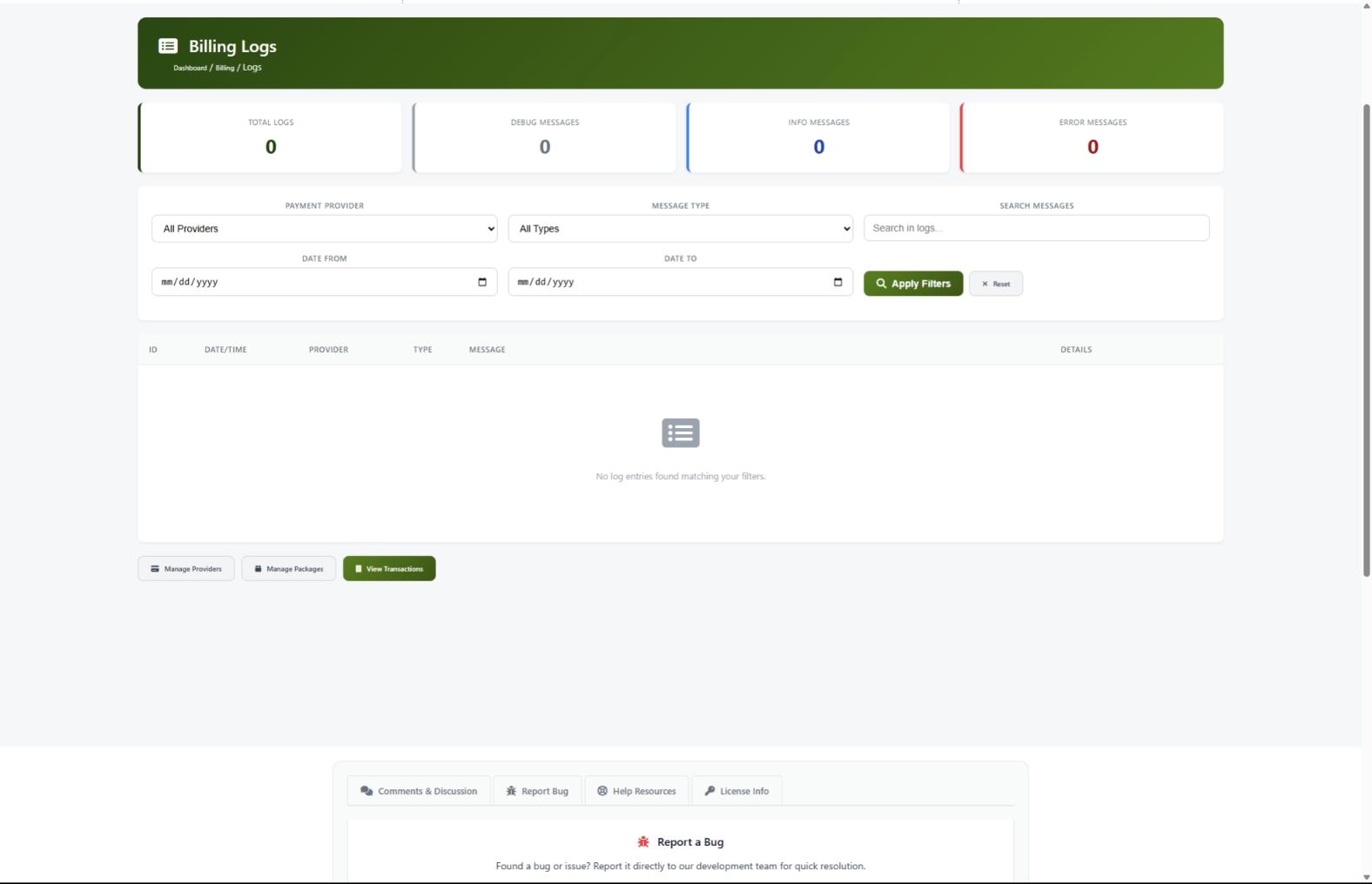
When you open this page, you will see four main areas: a statistics bar at the top, a set of filters below it, the main log table, and navigation buttons at the bottom.
Statistics Bar
At the top of the page, four colored cards give you a quick summary of your log activity:
[Screenshot: billing-logs-stats]
Filter Panel
Below the statistics bar, you will find filters that let you narrow down which log entries you see. You can filter by payment provider, message type, a keyword search, and a date range. More details on using filters are in the Common Tasks section below.
Log Table
The main area of the page is a table listing every log entry, with the most recent entries at the top. Each row shows:
Rows are color-coded so you can quickly spot issues:
- Red background -- Error entries that may need your attention
- Gray background -- Debug entries with technical background details
- White background -- Normal informational entries
Action Buttons
At the bottom of the page, you will find quick-access buttons to jump to related pages.
Common Tasks
How to View Recent Logs
- Go to Admin Panel > Billing > Logs.
- The page automatically shows the most recent entries first.
- Scroll through the table to review activity.
- Hover over the Details column on any row to see the full details of that entry.
How to Filter by Payment Provider
Use this when you want to see activity from just one payment provider (for example, only PayPal or only Stripe).
- Select the provider from the Payment Provider dropdown.
- Click Apply Filters.
- The table and statistics cards update to show only entries from that provider.
How to Filter by Message Type
Use this to focus on a specific kind of log entry.
- Select a type from the Message Type dropdown:
- Debug -- Background technical details
- Info -- Normal events like successful payments
- Error -- Problems that need attention
- Click Apply Filters.
How to Filter by Date Range
Use this to look at logs from a specific time period.
- Click the Date From field and pick a start date.
- Click the Date To field and pick an end date.
- Click Apply Filters.
- The table shows only entries from within that date range (both dates are fully included).
How to Search Logs
Use this when you are looking for something specific, like a particular keyword or reference number.
- Type your search term into the Search Messages field.
- Click Apply Filters.
- The results show entries where your search term appears in either the message or the details.
Helpful search terms to try:
How to Combine Multiple Filters
You can use all filters at the same time for a very targeted search.
- Select a Payment Provider.
- Select a Message Type.
- Set a Date From and Date To range.
- Type a keyword in Search Messages.
- Click Apply Filters.
Only entries matching all of your criteria will appear, and the statistics cards will update to match.
How to Clear All Filters
- Click the Reset button next to the Apply Filters button.
- The page reloads showing all log entries with no filters applied.
Navigating Between Pages
The log table shows 100 entries per page. If you have more entries than that, use the page navigation below the table to move between pages. You will see Previous and Next arrows along with page numbers. A line below the navigation tells you which page you are on and how many entries exist in total.
Quick Links to Related Pages
At the bottom of the page, three buttons let you jump to related areas:
Tips for New Users
- Check your billing logs at least once a day, especially when you first set up a new payment provider.
- A sudden spike in error messages usually means something changed with your payment provider -- check your provider settings.
- Use the date range filter to compare activity week over week and spot unusual patterns.
- If you see a provider name showing as a number instead of a name, it means that provider was removed from your settings but its old logs still exist. This is normal and nothing to worry about.
Monitoring Your Payment Health
Here is a simple schedule to keep your payments running smoothly:
Understanding Error Rates
Recognizing Common Log Patterns
A Successful Payment Looks Like This
You will see a series of Info messages in order:
- A notification received from the payment provider
- The notification verified successfully
- A transaction created for the user
- The subscription or access updated
A Failed Payment Looks Like This
You will see one or more Error messages, often with an Info message before or after:
- A notification received from the payment provider
- An error indicating what went wrong (such as "payment declined" or "verification failed")
What to Do When You See Errors
- Filter by Message Type: Error to see all recent errors.
- Look for patterns -- are the errors all from the same provider? The same type of message?
- Hover over the Details column for more information about each error.
- Take action based on what you find:
Troubleshooting
No log entries are showing up
What you see: The page loads but the table is empty and all statistics show zero.
How to fix it:
- Make sure you have at least one payment provider set up. Go to Admin Panel > Billing > Payment Providers and check.
- If you just set up your payment providers, logs will only appear after real payment activity occurs (a test transaction, a webhook from your provider, etc.).
- Check that your filters are not too restrictive. Click Reset to clear all filters and see if entries appear.
The Details column does not expand when I hover over it
What you see: You hover over a truncated entry in the Details column but it does not expand.
How to fix it:
- Try refreshing the page.
- Try a different web browser to see if the issue persists.
- If the entry shows "No additional details," there is nothing more to see for that entry -- it simply does not have extra detail information.
A payment provider shows as a number instead of a name
What you see: In the Provider column, you see a number (like "3") instead of a provider name.
How to fix it:
This happens when a payment provider was removed from your settings but its log entries still exist. The logs are still valid -- the system just cannot look up the provider's name anymore. This does not affect your site's operation.
Filters do not seem to be working
What you see: You apply filters but the results do not seem correct.
How to fix it:
- Click Reset to clear all filters.
- Apply just one filter at a time to narrow down which filter might be causing confusion.
- Double-check your date range -- make sure the Date From is before the Date To.