Live Video Streaming Setup
What This Page Does
This guide helps you set up the live video streaming feature on your ComusThumbz site. Once configured, your creators can broadcast live video directly from their browsers to their fans, with real-time chat, tipping, and private shows. Think of it like setting up your own personal Twitch or OnlyFans live streaming platform.
Why You Need This
The live streaming feature allows creators on your site to:
- Go live directly from their browser (no special software needed)
- Stream video with very low delay (under 1 second)
- Chat with viewers in real-time
- Receive tips during their stream
- Offer private one-on-one shows
- Control who can watch (free, subscribers only, pay-per-view, etc.)
For viewers, they can:
- Watch creators broadcast live
- Send messages in chat
- Send tips to creators
- Request private shows
Before You Begin
Live streaming requires a dedicated server or VPS (Virtual Private Server). It will NOT work on shared hosting like GoDaddy or Bluehost's basic plans. You need root access to install software on the server.
What You'll Need
- A separate server or VPS - This can be the same server where ComusThumbz is installed, or a different one. Minimum 2GB RAM, 2 CPU cores recommended.
- A domain or subdomain - Something like
streaming.yoursite.com - About 30-60 minutes - For the setup process
- Basic comfort with a command line - You'll need to run some commands on your server
Checking if You're Ready
Log into your server via SSH and run these commands:
# Check if Docker is installed
docker --version
Check your server's public IP
curl -s ifconfig.meIf Docker is not installed, don't worry - the setup script can install it for you.
Understanding the Setup
How Live Streaming Works
Creator's Browser -> Streaming Server -> Viewers' Browsers- A creator opens the "Go Live" page on your site
- Their webcam and microphone connect to your streaming server
- The streaming server sends the video to all viewers watching
- Everyone can chat and send tips in real-time
What Gets Installed
The setup process installs LiveKit, which is the streaming server software. It runs in a Docker container (think of it like a self-contained mini-computer) on your server and handles all the video routing.
Installation Steps
Step 1: Choose Your Installation Method
There are two ways to set up the streaming server:
Option A: Automated Setup (Recommended) - A script does everything for you
Option B: Manual Setup - You run each command yourself (for advanced users)
We recommend Option A for most people.
Option A: Automated Setup (Easiest)
1. Upload the Setup Script
- Download the setup script from your ComusThumbz installation folder:
tools/setuplivekitserver.sh - Upload it to your streaming server (you can put it in your home directory)
2. Make the Script Executable
Log into your server via SSH and run:
chmod +x setuplivekitserver.sh3. Run the Setup Script
sudo ./setuplivekitserver.shThe script will ask you a few questions and then:
- Install Docker if needed
- Configure your firewall
- Set up the streaming server
- Generate security keys
4. Save Your Credentials
At the end, the script will show you something like:
API Credentials:
  API Key: APIxxxxxxxxxxxxxxxx
API Secret: xxxxxxxxxxxxxxxxxxxxxxxxxxxxxxxxxxxxCopy these credentials and save them somewhere safe! You'll need them in the next section.
5. Test the Installation
The script will tell you if everything is working. You should see a message saying "LiveKit is running successfully."
Option B: Manual Setup (Advanced)
If you prefer to do the setup manually or the automated script doesn't work for your server, follow the detailed manual installation steps in the technical guide.
The manual steps are essentially the same things the automated script does, just broken down into individual commands. Only use this if you're comfortable with server administration.
Connecting ComusThumbz to the Streaming Server
Now that your streaming server is running, you need to tell your ComusThumbz installation how to connect to it.
Step 1: Enable the Feature
- Log into your Admin Panel
- Go to Admin Panel > Settings > Feature Toggles
- Find Live Streaming and turn it ON
- Click Save Changes
Step 2: Add Your Streaming Server Details
You need to add three pieces of information to your configuration file.
- Log into your web server via SFTP or File Manager
- Navigate to
ct/dat/config.inc.php - Open the file for editing
- Add these lines at the end of the file (before the closing
?>if there is one):
// LiveKit WebRTC Streaming Configuration
define('LIVEKITHOST', 'wss://streaming.yoursite.com/livekit/');
define('LIVEKITAPIKEY', 'paste-your-api-key-here');
define('LIVEKITAPISECRET', 'paste-your-api-secret-here');- Replace the values:
streaming.yoursite.com- Your streaming server domainpaste-your-api-key-here- The API Key from Step 4 of the installationpaste-your-api-secret-here- The API Secret from Step 4 of the installation
- Save the file
For LIVEKITHOST, use
wss:// (secure WebSocket) if you have SSL/HTTPS on your site. If you're just testing on a local network, you can use ws:// followed by your server's IP address and :7880.Step 3: Verify It's Working
- Log into your site as a user who has creator access
- Go to My Account > Go Live (in your user settings)
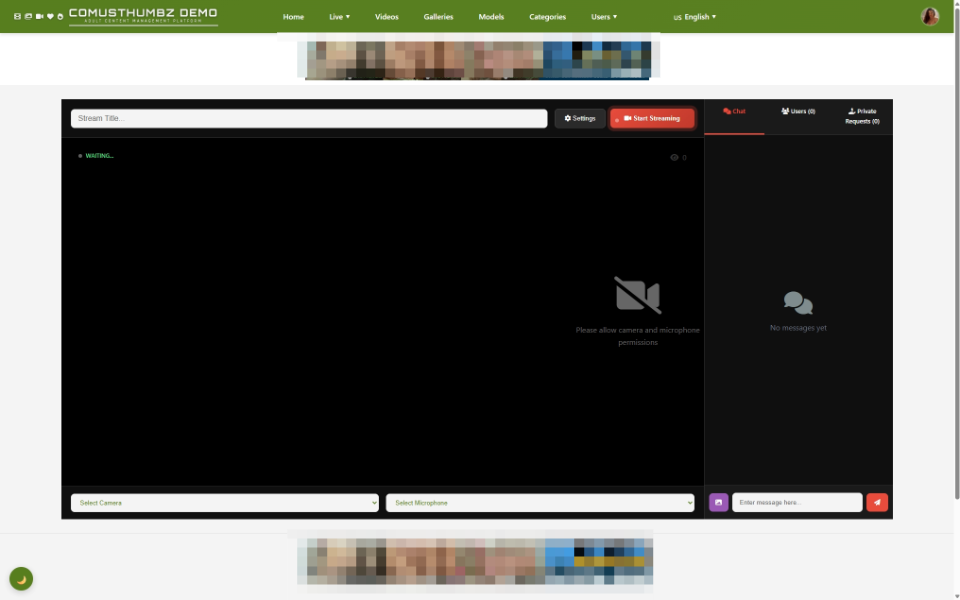
- You should see the "Go Live" page with webcam options
- If you see an error message instead, something isn't configured correctly
Testing Your Setup
Complete Streaming Test
Follow these steps to verify everything is working:
1. Prepare a Creator Account
You need an account with creator privileges to test.
- Go to Admin Panel > Users > User Management
- Find the user you want to test with
- Click Edit
- Make sure Is Creator is set to Yes
- Save
2. Start a Test Stream
- Log in as the creator
- Go to My Account > Go Live
- Fill in a stream title (like "Test Stream")
- Set access to Free (so anyone can watch)
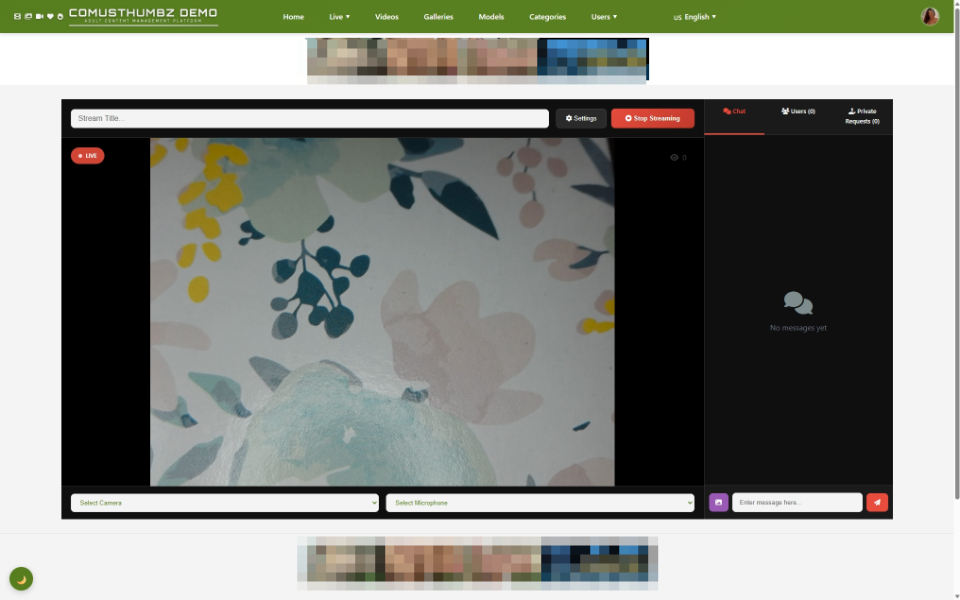
- Click Start Streaming
- When your browser asks for camera/microphone permission, click Allow
- You should see your webcam preview on screen
3. Watch the Stream as a Viewer
- Open a different browser (or incognito/private window)
- Visit your site and go to Live Streams in the main menu
- You should see your test stream listed
- Click on it to watch
- The video should appear within 1-2 seconds
4. Test the Chat
- In the viewer window, type a message in the chat box and press Enter
- The message should appear in both the viewer and broadcaster windows
- This confirms real-time communication is working
5. End the Stream
- Back in the broadcaster window, click End Stream
- The stream should disappear from the Live Streams page
- The viewer should see a message that the stream has ended
If all five steps worked, congratulations! Your live streaming is fully operational.
Where Creators and Viewers Go
For Creators (Broadcasters)
Go Live Page: Settings > Go Live
On this page, creators can:
- Select their camera and microphone
- Set a title and description for their stream
- Choose who can watch (free, password protected, subscribers only, pay-per-view, or tip goal)
- See their viewer count
- Read and respond to chat messages
- See tip notifications
- Accept or decline private show requests
For Viewers
Stream Directory: Live Streams (in main navigation)
This page shows:
- All active streams as a grid of preview cards
- Number of viewers watching each stream
- Creator's profile picture and name
Watch Stream Page: Clicking on any stream opens the viewer page
On this page, viewers can:
- Watch the live video
- Chat with the creator and other viewers
- Send tips
- Request a private show (if they have enough tokens)
Common Tasks
Restarting the Streaming Server
If your streams aren't working, sometimes you just need to restart the server:
# Log into your streaming server via SSH
docker restart livekit
Wait 10 seconds, then test again.
Checking if the Streaming Server is Running
# Log into your streaming server via SSH
docker ps | grep livekit
If you see a line with "livekit" in it, the server is running. If you don't see anything, start it:
cd /opt/livekit
docker compose up -d
Viewing Server Logs
If something isn't working and you need to see what's happening:
# Show the last 50 lines of the log
docker logs --tail 50 livekit
Watch the log in real-time (press Ctrl+C to stop)
docker logs -f livekitUpdating the Streaming Server
Every few months, you may want to update to the latest version:
# Pull the latest version
docker pull livekit/livekit-server:latest
Restart with the new version
docker compose down
docker compose up -d
Troubleshooting
Streams Won't Start
What you see: Creator clicks "Start Streaming" but nothing happens or an error appears.
How to fix it:
- Check that the feature is enabled in Admin Panel > Settings > Feature Toggles
- Verify the creator account has Is Creator set to Yes
- Check your
config.inc.phpfile has the three LIVEKIT settings - Verify the streaming server is running:
docker ps | grep livekit
Viewers Can't Connect
What you see: The Live Streams page loads but clicking a stream shows an error or black screen.
How to fix it:
- Make sure your firewall allows traffic on these ports:
- TCP: 7880, 7881
- UDP: 50000-60000
- Check that your LIVEKITHOST uses
wss://(notws://) if your site uses HTTPS - Verify your SSL certificate is valid if using HTTPS
Chat Works But Video is Black
What you see: Viewers can send chat messages but the video never appears.
How to fix it:
This usually means the UDP ports are blocked. On your streaming server:
# Open the UDP port range
sudo ufw allow 50000:60000/udp
Then restart the streaming server and try again.
"You Already Have an Active Stream" Error
What you see: Creator tries to go live but gets an error saying they already have a stream.
How to fix it:
This happens if a previous stream didn't end properly (browser crash, etc.). You can manually end it:
- Go to Admin Panel > Live Streams (if you have this page)
- Find the stuck stream and click End Stream
Or ask a developer to run this SQL command:
UPDATE tblLiveStreams
SET status = 'ended', endedat = NOW()
WHERE creatorid = [USERID] AND status IN ('waiting', 'live');
Replace [USERID] with the creator's user ID number.
Stream Previews Not Showing
What you see: The Live Streams directory page shows streams but no preview images.
How to fix it:
- Check that the
uploads/streamsnapshots/folder exists - Make sure the folder is writable (permission 755 or 777)
- Wait a few seconds - previews are captured every 30 seconds during a live stream
Tips for New Users
- Start with free streams - Get comfortable with the technology before setting up paid streams
- Test with friends - Have a few people watch your first stream to verify everything works
- Check your internet speed - Creators need at least 5 Mbps upload speed for good quality streaming
- Use a wired connection - WiFi can be unreliable for streaming; ethernet cables work better
- Close other apps - Streaming uses a lot of computer resources; close unnecessary programs
- Have good lighting - Viewers can't tip if they can't see you clearly
Access Control Options Explained
When creators start a stream, they choose who can watch:
Creators can change these settings for each stream.
Understanding Private Shows
Private shows are one-on-one streams between a creator and a single viewer. Here's how they work:
- A viewer watches a public stream
- They click Request Private Show
- They set how many minutes they want
- The request appears to the creator
- If the creator accepts:
- The public stream ends
- A new private stream starts
- Only the requesting viewer can watch
- Tokens are deducted per minute automatically
- When time runs out (or someone ends it), the private show ends
Creators set their per-minute rate in their creator profile settings.
Security and Privacy
What's Protected
- All video streams are encrypted in transit
- Tokens (payment for access) are generated by the server, not the browser
- Viewers can only join rooms they have permission for
- Chat messages are stored in your database
What to Watch For
- Require SSL/HTTPS - Always use
wss://in your LIVEKIT_HOST setting for production sites - Monitor reported streams - Have a moderation system for inappropriate content
- Set up rate limiting - Prevent chat spam by limiting how fast users can send messages
- Review your firewall - Only open the ports mentioned in this guide
Related Pages
Getting Help
If you're stuck:
- Check the logs - Run
docker logs livekitto see what the streaming server is reporting - Test the connection - Make sure you can reach your streaming server from a browser
- Verify your config - Double-check the three LIVEKIT settings in
config.inc.php - Check the forum - Other users may have solved the same issue
- Contact support - Provide the output of
docker psanddocker logs --tail 50 livekit
What's Next?
Once your live streaming is set up:
- Promote the feature - Let your creators know they can now go live
- Create a guide for creators - Write simple instructions for your specific audience
- Set token prices - Decide pricing for pay-per-view and private shows
- Monitor usage - Watch server resources to see if you need to upgrade
- Gather feedback - Ask creators and viewers what they like or what needs improvement
Live streaming can significantly increase engagement and revenue on your site. Take time to promote it to your creators and viewers!