General Settings
What This Page Does
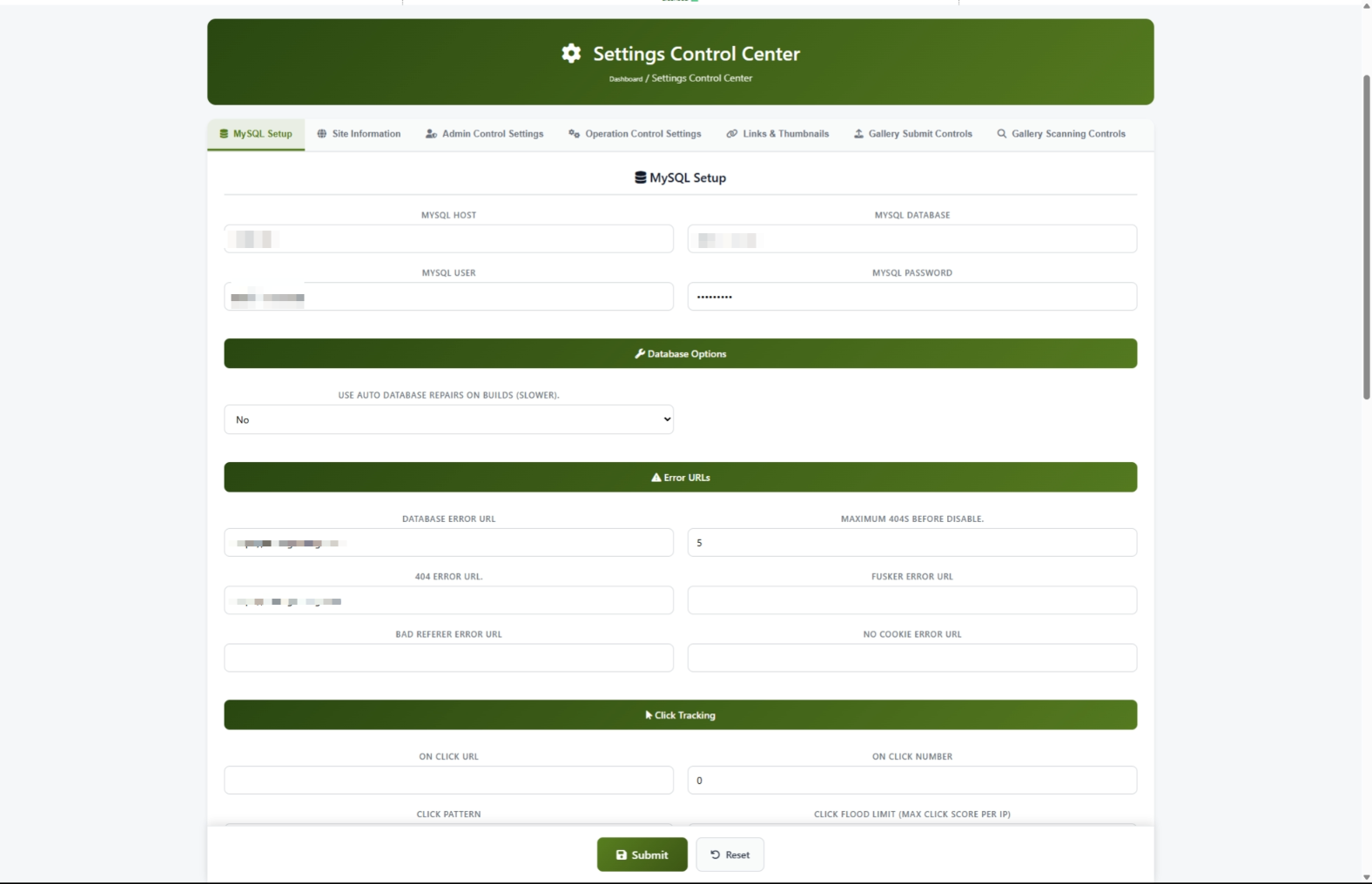
The Settings Control Center is the central hub where you manage all the core settings for your site. From here, you can set your site name, control how thumbnails look, manage content submissions, configure error pages, and much more. Think of it as the master control panel for everything your site does.
How to Get Here
Navigate to Admin Panel > Settings > General Settings
Understanding the Page
When you open the Settings Control Center, you will see a row of tabs across the top of the page. Each tab groups related settings together so you can find what you need quickly.
The Tab Bar
There are seven tabs along the top:
Click any tab to switch to that section. The active tab is highlighted with a green border at the bottom.
#scanning at the end of the web address.The Save Button
At the bottom of the page, you will find the Submit button to save your changes and a Reset button to undo unsaved changes.
Common Tasks
How to Set Up Your Site Name and Details (First-Time Setup)
When you first install ComusThumbz, this is one of the first things you should do.
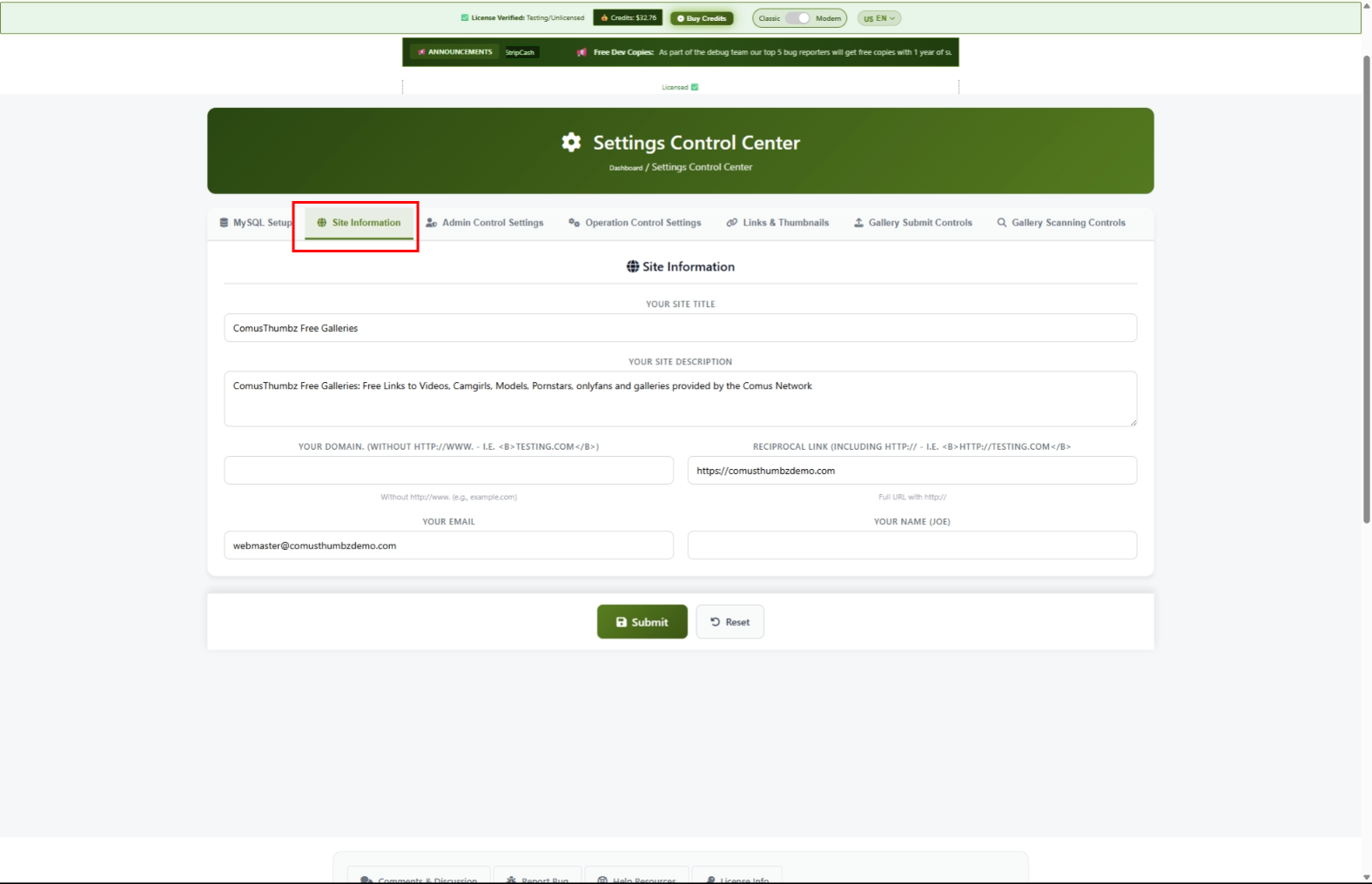
- Click the Site Information tab.
- Type your site name in the Site Title field. Keep it under 60 characters. This is what appears in browser tabs and search engine results.
- Type a short description of your site in the Site Description field. Keep it between 150 and 160 characters. This is what search engines show below your site name.
- Type your domain name in the Domain Name field. Use just the domain without "http://" or "www." -- for example,
example.com. - Type your email address in the Admin Email field. This is where system notifications are sent.
- Type your name or company name in the Owner Name field.
- Click Submit at the bottom of the page.
- Open a new private/incognito browser window and visit your site to confirm the title and description appear correctly.
How to Configure Thumbnail Sizes
Thumbnails are the small preview images that appear in grids on your site. Here is how to set their size and quality.
- Click the Links & Thumbnails tab.
- Scroll down to the Thumbnail Settings section.
- Set the Thumbnail Width in pixels (for example,
220). - Set the Thumbnail Height in pixels (for example,
180). - Set the Thumb Quality to a number between 1 and 100. Higher numbers mean better quality but larger file sizes.
- Click Submit.
How to Configure Error Pages
Error pages are where your visitors are sent when something goes wrong. Setting these up properly keeps visitors on your site instead of showing them confusing error messages.
- Click the MySQL Setup tab.
- Scroll to the Error URLs section.
- Fill in each field with a full web address (including
https://):
- Database Error URL -- Where visitors go if the site has a temporary problem. Use a simple "We'll be back soon" page.
- 404 Error URL -- Where visitors go when they try to reach a page that does not exist.
- No Cookie Error URL -- Where visitors go if their browser blocks cookies.
- Click Submit.
http:// or https://. If you leave off the prefix, the address will be silently cleared when you save.How to Set Up Click Protection
Click protection prevents automated bots from abusing your site by clicking links too quickly.
- Click the MySQL Setup tab.
- Scroll to the Click Tracking section.
- Set the Click Flood Limit to control how many clicks are allowed before a visitor is temporarily blocked. The default of
180works well for most sites. - Enter a web address in the Click Flood Error URL field. This is where blocked visitors are sent.
- If you want to make sure you or trusted partners are never blocked, add your internet addresses to the Click Flood Whitelist field, separated by commas.
- Click Submit.
How to Send Thumbnails to a Remote Server
If you use a separate server or CDN to serve your thumbnail images, you can set up automatic syncing.
- Click the MySQL Setup tab.
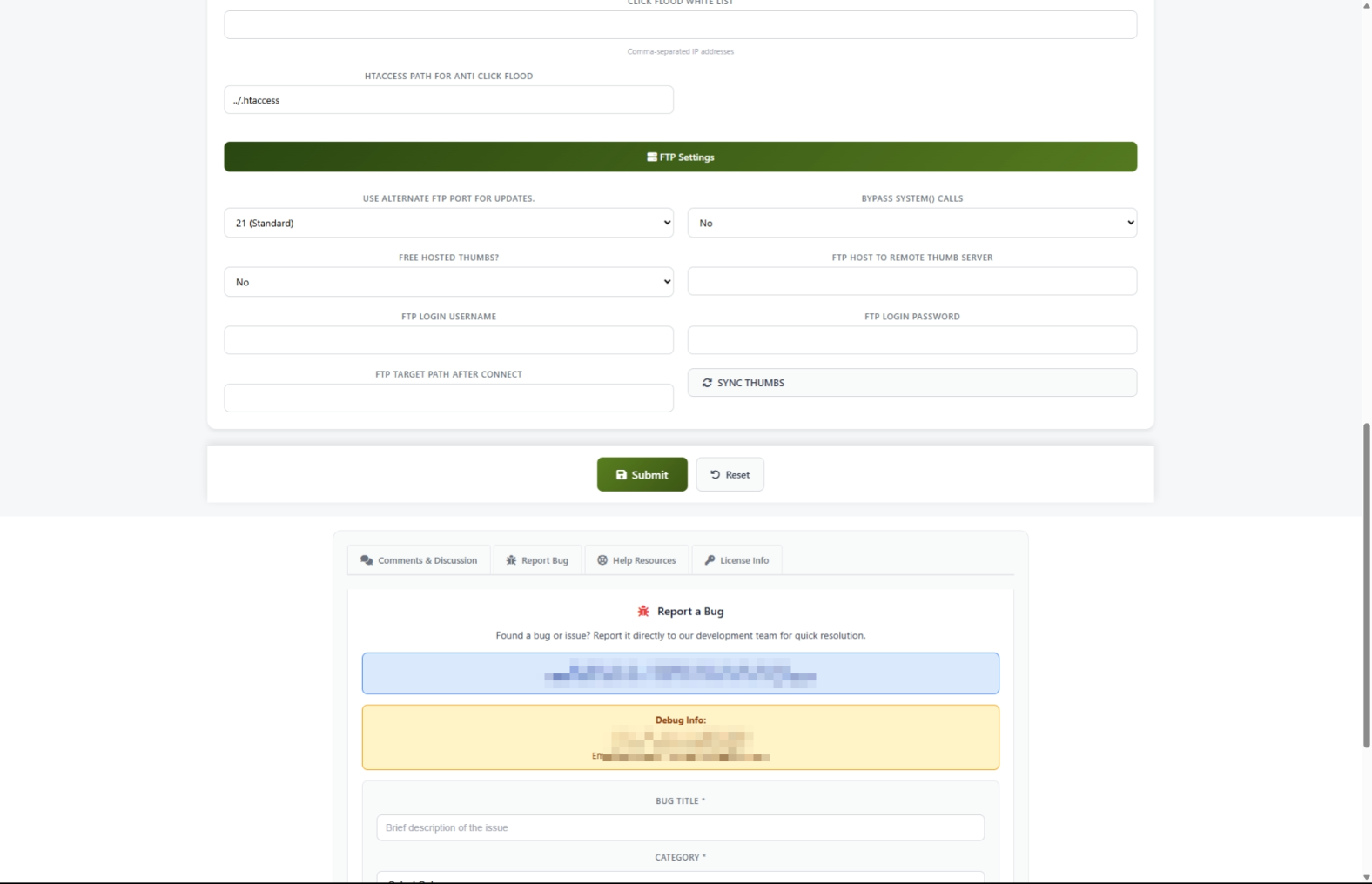
- Scroll to the FTP Settings section.
- Set Remote Thumbs to Yes.
- Fill in your remote server details:
- FTP Host -- The address of your remote server
- FTP Username -- Your login name for the remote server
- FTP Password -- Your password for the remote server
- FTP Path -- The folder on the remote server where thumbnails should be stored
- Click Submit to save the settings.
- Click the SYNC THUMBS button to start uploading.
- A progress window appears showing each file being transferred. Wait for it to finish.
How to Control Content Submissions
You can control who is allowed to submit content to your site and how often.
- Click the Gallery Submit tab.
- Under Accept Galleries, choose who can submit:
- No Submits -- Nobody can submit (useful during maintenance)
- All -- Anyone can submit
- Partners Only -- Only approved partners can submit
- Preferred Only -- Only your VIP submitters can submit
- Set the Submit Period to control how many hours a person must wait between submissions.
- Set Max Guest Posts to limit how many submissions a non-partner can make per day.
- Set Max Partner Posts to limit daily submissions from partners.
- Click Submit.
How to Set Up Content Scanning
Content scanning automatically checks submitted galleries for quality and security before they appear on your site.
- Click the Gallery Scanning tab.
- Set Scan Submissions to Yes to turn on automatic checking.
- Under Script Checks, set these recommended values for safety:
- Allow Popups -- No
- Allow Flash -- No
- Allow IFrames -- No
- Under Duplicate & Word Checks:
- Set Disallow Duplicates to Yes to prevent the same content from being submitted twice.
- Set Use Blacklist to Yes to block known problem sources.
- Under Image Validation, set minimum quality standards:
- Min Image Points -- Start with
15(increase for stricter quality) - Max Server Ping --
3000(blocks very slow servers)
- Click Submit.
Settings and Options
Site Information Settings
Thumbnail Settings
Submission Control Settings
Operation Settings
Admin Control Settings
Tips for New Users
- Save often. After changing a few settings, click Submit before moving to another tab. If something goes wrong, you will know which change caused the issue.
- Test after every change. Open your site in an incognito window after saving to see how your changes look to visitors.
- Start simple. You do not need to fill in every setting right away. Begin with the Site Information tab, then set up thumbnails, and adjust other settings as needed.
- Use the Help System. Turn on the Help System in the Admin Control tab. Helpful tooltips will appear next to each setting to explain what it does.
- Keep notes. Before changing a setting, write down what it was set to previously. This makes it easy to undo if something breaks.
Troubleshooting
You see "Access for this address is banned"
What you see: A message saying your address is banned when you try to open the Settings Control Center.
How to fix it: Your internet address needs to be added to the access list. Contact the person who installed ComusThumbz or your hosting support team to add your address to the allowed list.
Settings are not saving
What you see: You click Submit but your changes do not stick, or you see an error about a token.
How to fix it:
- Refresh the page completely by pressing Ctrl+F5 (or Cmd+Shift+R on Mac).
- Make your changes again.
- Click Submit.
- Avoid using the browser back button after saving -- always navigate forward.
A web address field keeps going blank after saving
What you see: You enter a web address into a field like the Click Flood Error URL, but after saving it is empty.
How to fix it: Make sure you include the full address starting with http:// or https://. Addresses without this prefix are not accepted.
Thumbnail sync fails
What you see: You click SYNC THUMBS and see an error message in the progress window.
How to fix it:
- Double-check that your FTP Host, FTP Username, and FTP Password are correct.
- Make sure the FTP Path folder exists on your remote server.
- Save your FTP settings by clicking Submit before clicking SYNC THUMBS.
- If you continue to have problems, contact your remote server provider to confirm your login details.
Thumbnails are missing after a sync
What you see: You ran a thumbnail sync and now some thumbnails are not showing.
How to fix it: This is expected behavior. After a successful sync, thumbnail files are moved to your remote server and removed from the main server. If your remote server settings are correct, the thumbnails should load from the remote server. If they are not loading, check that your remote server is accessible and the files were transferred successfully.
Your site looks broken after changing settings
What you see: Pages look different, links do not work, or images are missing after you saved changes.
How to fix it:
- Go back to the Settings Control Center.
- Check the Domain Name field on the Site Information tab. Make sure it matches your actual domain exactly (without
http://orwww.). - Check the Thumbnail Width and Thumbnail Height on the Links & Thumbnails tab. Make sure they are reasonable numbers (not zero or extremely large).
- If you cannot figure out which setting caused the problem, contact support with a description of what you changed.