Creator Subscription Packages
What This Page Does
This page lets you set up the subscription plans that creators on your site can offer to their fans. You define the plan names, prices, benefits, and durations here. Creators then choose which of your plans to enable on their profiles, and fans subscribe to access exclusive content.
Think of it like building a menu of subscription options. You design the menu, and creators pick which items to serve.
How to Get Here
Navigate to Admin Panel > Settings > Billing System > Creator Packages
Understanding the Page
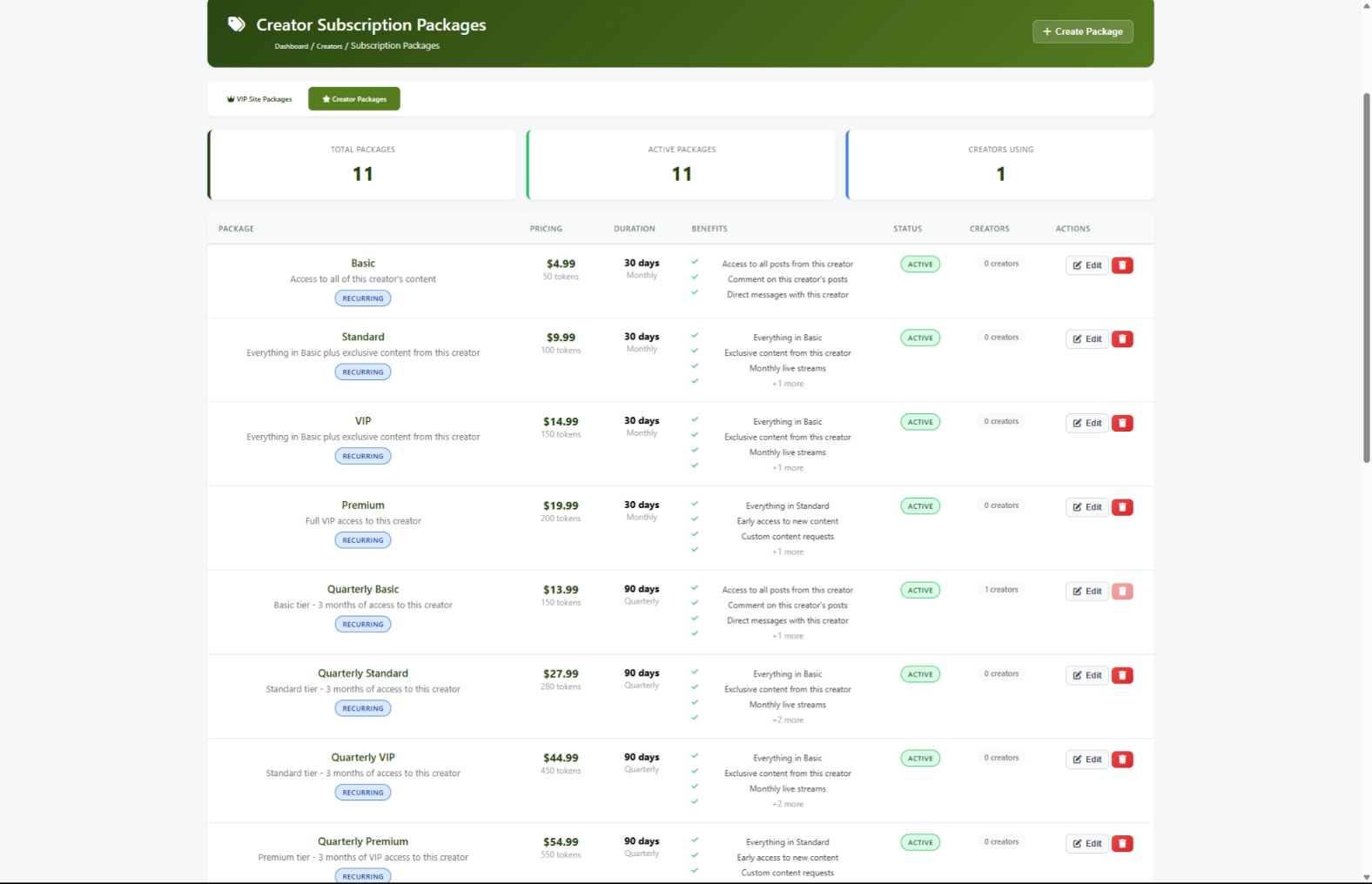
When you open this page, you will see several areas.
Tab Navigation
At the top of the page, two tabs let you switch between different types of packages:
- VIP Site Packages -- These are site-wide membership plans (managed on a separate page).
- Creator Packages -- This is the current page, where you manage subscription plans for individual creators.
Statistics Bar
Three summary cards give you a quick overview:
Packages Table
Below the statistics, a table lists all your subscription plans. Each row shows:
If you have not created any packages yet, the table shows a message inviting you to create your first one.
Common Tasks
How to Create a New Subscription Package
- Click the Create Package button at the top right of the page.
- A form appears in a popup window. Fill in the fields:
- Package Name -- Give the plan a clear name like "Bronze," "Silver," or "Gold."
- Description -- Write a short marketing description that fans will see.
- Price (USD) -- Set the dollar amount fans will pay per period.
- Price (Tokens) -- Set an alternative price in tokens for fans who prefer to pay that way.
- Duration -- Choose how long each subscription lasts: Monthly (30 days), Quarterly (90 days), Semi-Annual (180 days), or Yearly (365 days).
- Display Order -- Enter a number to control where this plan appears in the list. Lower numbers appear first.
- Benefits -- Type each benefit on its own line. For example:
Access to exclusive posts
     Direct messaging
Subscriber badge- Allow auto-renewal -- Check this box if you want the subscription to renew automatically when it expires.
- Active -- Check this box to make the plan available to creators right away.
- Click Create Package.
How to Edit an Existing Package
- Find the package you want to change in the table.
- Click the Edit button on that row.
- The form opens with all the current details filled in.
- Make your changes.
- Click Update Package.
How to Disable a Package (Without Deleting It)
If you want to stop offering a plan but keep it on record:
- Find the package in the table.
- Click the Edit button.
- Uncheck the Active box.
- Click Update Package.
The plan disappears from creator settings and is no longer available for new subscriptions. Fans who are already subscribed continue their current subscription until it expires.
How to Delete a Package
- Find the package you want to remove in the table.
- Click the Delete button (trash icon).
- A confirmation dialog asks if you are sure. Click OK to proceed.
How to Reorder Packages
Packages appear in the order set by their Display Order number. To rearrange them:
- Click Edit on the package you want to move.
- Change the Display Order number. Lower numbers appear first.
- Click Update Package.
- Repeat for any other packages you want to reorder.
Settings and Options
When creating or editing a package, here is what each option does:
Tips for New Users
- Start with a simple tier structure. Three or four plans work best. Too many options can confuse fans.
- Make each tier clearly better than the last. Higher tiers should include all the benefits of lower tiers plus something extra.
- Price your tiers with consistent jumps. For example: $4.99, $9.99, $19.99, $49.99. Each step roughly doubles, which feels natural to buyers.
- Put the most important benefits first. The table preview only shows the first three benefits, so lead with the best ones.
- Use tokens to offer a small discount. If a plan costs $9.99 in dollars, price it at 90 tokens instead of 100. This encourages fans to buy tokens.
- Review your packages regularly. Check the "Creators Using" count to see which plans are popular and which might need adjusting.
Troubleshooting
A package is not showing up for creators
What you see: You created a package, but creators cannot find it in their settings.
How to fix it:
- Go to Admin Panel > Creators > Subscription Packages.
- Check the Status column for that package. If it says Disabled, click Edit and check the Active box, then save.
- If the status is already Active, the creator may not have enabled it yet. Creators choose which packages to offer in their own dashboard.
Benefits are not appearing on a package
What you see: You entered benefits, but the package shows "No benefits listed."
How to fix it:
- Click Edit on the package.
- Make sure each benefit is on its own line in the Benefits box. Avoid blank lines or lines with only spaces.
- Click Update Package to save.
The Delete button is grayed out
What you see: You want to delete a package, but the trash icon is not clickable.
How to fix it:
This means one or more creators are currently offering this package. You have two options:
- Disable instead of delete. Edit the package, uncheck Active, and save. This hides it from new subscriptions while keeping existing ones running.
- Wait for creators to remove it. Once no creators are offering the package, the Delete button becomes available.
"Invalid security token" error when saving
What you see: You get an error message about an invalid security token when you try to create or update a package.
How to fix it:
- Refresh the page in your browser.
- Try creating or editing the package again.
- If the problem continues, log out and log back in.