Billing Transactions
What This Page Does
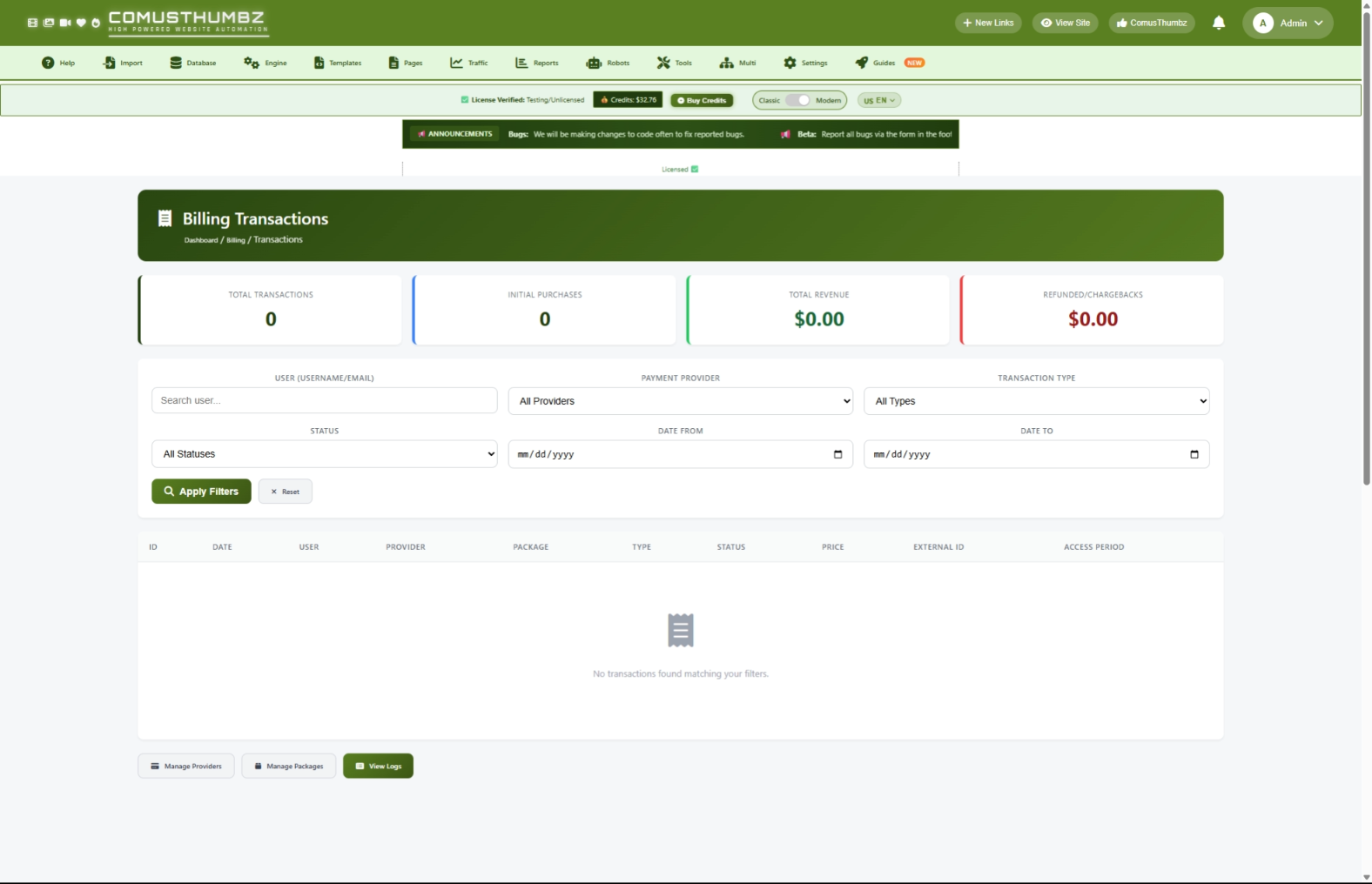
This page shows you every payment that has happened on your site. You can see who paid, how much they paid, what they bought, and whether any payments were refunded or disputed. It also gives you a quick summary of your total revenue and any money lost to refunds or chargebacks.
How to Get Here
Navigate to Admin Panel > Settings > Billing System > View Transactions
Understanding the Page
When you open this page, you will see a summary of your finances at the top, a set of filters to narrow down what you are looking at, and a table listing every transaction.
Statistics Cards
At the top of the page, four cards give you a snapshot of your billing activity:
Filter Panel
Below the statistics cards, you will see a row of filter options. These let you search for specific transactions instead of scrolling through the entire list. More details on using filters are in the Common Tasks section below.
Transactions Table
The main area of the page is a table listing your transactions from newest to oldest. Each row shows the date, the user who made the payment, the payment provider, the package they purchased, the transaction type, its status, and the amount paid.
Transactions are color-coded so you can spot important information at a glance:
- Green amounts represent money coming in (purchases, recurring charges, token sales)
- Red amounts represent money going out (chargebacks, refunds, voided transactions)
Each transaction also has a colored label showing its type:
Status labels tell you where a transaction stands:
Navigation Buttons
At the bottom of the page, three buttons let you quickly jump to related pages:
- Manage Providers -- Go to your payment provider settings
- Manage Packages -- Go to your subscription and token package settings
- View Logs -- Go to the raw billing logs for detailed troubleshooting
Common Tasks
How to View All Transactions
- Go to Admin Panel > Billing > Transactions.
- The page loads with all transactions listed from newest to oldest.
- Check the four statistics cards at the top for a quick financial summary.
- Scroll through the table to review individual transactions.
How to Search for a Specific User's Transactions
- Type the user's name or email address into the User field. You do not need to type the full name -- partial matches work.
- Click Apply Filters.
- The table now shows only transactions from that user.
How to Filter by Payment Provider
- Click the Provider dropdown.
- Select the payment provider you want to review.
- Click Apply Filters.
- Only transactions processed through that provider are shown.
How to Filter by Transaction Type
- Click the Type dropdown.
- Select the type you are interested in (for example, Chargeback or Rebill).
- Click Apply Filters.
How to Filter by Status
- Click the Status dropdown.
- Select Open, Closed, or Cancelled.
- Click Apply Filters.
How to Filter by Date Range
- Click the Date From field and pick a start date.
- Click the Date To field and pick an end date.
- Click Apply Filters.
- The table shows only transactions that occurred between those two dates (both dates included).
How to Combine Multiple Filters
You can use any combination of the filters above at the same time. For example, you could search for a specific user, select a specific provider, and set a date range all at once.
- Fill in as many filter fields as you need.
- Click Apply Filters.
- The results and statistics cards update to show only transactions matching all of your chosen criteria.
How to Clear All Filters
- Click the Reset button next to the Apply Filters button.
- The page reloads showing all transactions with no filters applied.
How to Track a Subscription Over Time
- Find a customer's initial purchase in the table.
- Note their username in the User column.
- Type that username into the User filter field and click Apply Filters.
- You can now see their full billing history: their original purchase, any recurring charges (rebills), and any refunds or chargebacks.
- Check the Access Period column to see when their subscription started and when it is set to expire.
How to Investigate Chargebacks
- Select Chargeback from the Type dropdown.
- Click Apply Filters.
- Review each chargeback transaction in the table.
- Note the user and external ID for each one.
- To see if a user has a pattern of chargebacks, type their username into the User filter and click Apply Filters again to view their full transaction history.
How to Navigate Between Pages of Results
If you have many transactions, they are split across multiple pages (50 per page). Use the page numbers or the Previous/Next arrows at the bottom of the table to move between pages. Your filters stay in place as you navigate.
Tips for New Users
- Check your transactions at least once a day to catch any issues early.
- Use the date range filter to compare revenue week-over-week or month-over-month.
- Pay special attention to the Refunded / Chargebacks card. If that number starts climbing, investigate immediately.
- If a customer contacts you about a payment problem, search for their name or email on this page to quickly pull up their history.
- Use the View Logs button at the bottom of the page if you need more technical detail about a specific transaction.
Best Practices
Daily Monitoring
- Open the Billing Transactions page.
- Set the Date From filter to yesterday's date and the Date To filter to today's date.
- Click Apply Filters.
- Review the statistics cards to confirm that transactions are processing normally.
- Check for any chargebacks or refunds.
Weekly Review
- Set the date range to the past seven days.
- Note the Total Revenue and Refunded / Chargebacks amounts.
- Compare these numbers to the previous week to spot trends.
- Filter by each payment provider separately to see which one is performing best.
Monthly Reconciliation
- Set the date range to cover the full month.
- Compare the Total Revenue number on this page with the reports from your payment provider's own dashboard.
- If the numbers do not match, use the View Logs button to investigate any missing or duplicate transactions.
Chargeback Rate Guidelines
Troubleshooting
A transaction is not showing up
What you see: A customer says they paid, but you cannot find their transaction on this page.
How to fix it:
- Make sure no filters are active. Click Reset to clear all filters.
- Search for the customer by name or email in the User field.
- If the transaction still does not appear, click View Logs at the bottom of the page to check if the payment notification was received.
- Log in to your payment provider's dashboard and confirm the transaction exists there.
- If the transaction exists at the provider but not on your site, contact your developer or support team for help.
A transaction shows "N/A" for the user
What you see: The User column shows a user ID number instead of a username, or shows "N/A."
How to fix it:
This usually means the user's account was deleted after they made the purchase, or the purchase was not linked to a user account. The transaction data is still intact. If you know which user this belongs to, contact your developer or support team to link it manually.
A transaction shows "N/A" for the provider
What you see: The Provider column shows "N/A" instead of a provider name.
How to fix it:
This can happen if a payment provider was removed from your settings after transactions were already recorded. The transaction data is safe. If you need to restore the provider name, contact your developer or support team.
Rebills are not appearing
What you see: A subscriber should be getting charged monthly, but you do not see new rebill transactions.
How to fix it:
- Check your payment provider's dashboard to see if the subscription is still active on their end.
- Click View Logs to look for any failed payment notifications.
- If the subscription is active at the provider but rebills are not appearing on your site, there may be a connection issue between the provider and your site. Contact your developer or support team.
Revenue numbers do not match your payment provider
What you see: The Total Revenue shown on this page does not match what your payment provider reports.
How to fix it:
- Make sure you are comparing the same date range. Set the Date From and Date To filters to match the range you are checking on your provider's dashboard.
- Remember that the Total Revenue card on this page includes both initial purchases and recurring charges, but does not subtract refunds or chargebacks. The Refunded / Chargebacks card shows those separately.
- If there is still a discrepancy after accounting for that, click View Logs to check for any missing payment notifications.