Payment Providers
What This Page Does
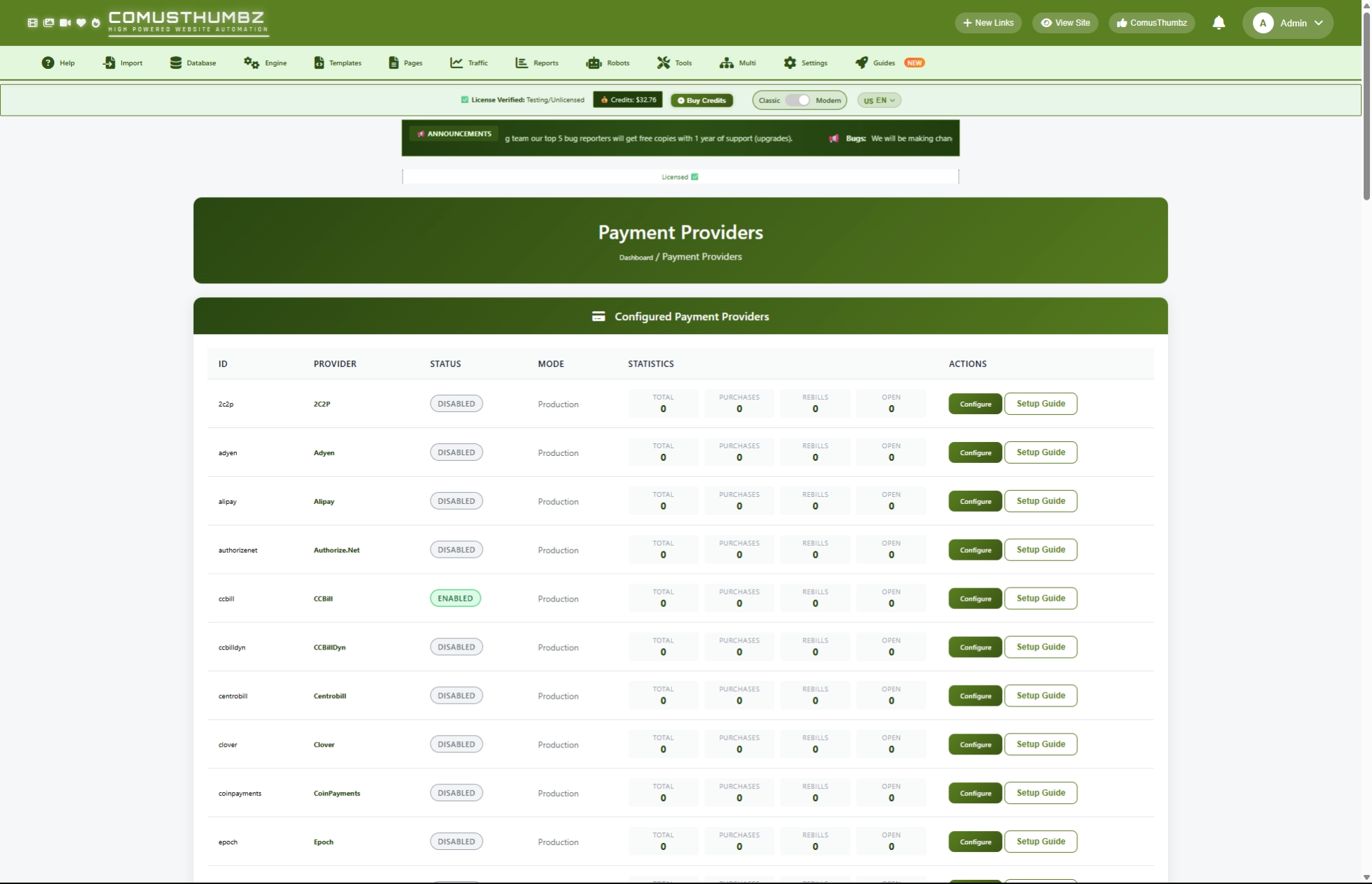
This page lets you set up and manage the payment processors your site uses to accept money from customers. You can turn payment methods on or off, enter your account credentials for each processor, and compare providers to find the best fit for your site and region.
How to Get Here
Navigate to Admin Panel > Settings > Biling System
Understanding the Page
When you open this page, you see three main sections: the providers table at the top, a comparison chart in the middle, and regional recommendations at the bottom.
Providers Table
This is your main working area. It lists every payment processor available in ComusThumbz (35 in total). For each provider, you can see at a glance whether it is turned on or off, whether it is in test mode or live mode, and how many transactions it has processed.
Each row shows four transaction numbers:
Comparison Chart
Below the providers table, a comparison chart helps you evaluate all 35 processors side by side. You can see each provider's fees, payout speed, whether it supports recurring billing, whether it accepts cryptocurrency, and how well it works for adult content sites. Adult-friendliness is shown as a star rating from one to five.
Regional Recommendations
At the bottom of the page, you will find recommended providers organized by geographic region. This helps you pick the right processor for your audience's location.
Quick Action Buttons
Below the providers table, three shortcut buttons give you fast access to related pages:
- Manage Access Packages -- Go to the page where you create subscription plans and pricing
- View Transactions -- See a history of all payments processed on your site
- View Logs -- Check detailed payment notification logs for troubleshooting
Common Tasks
How to Turn On a Payment Provider
Before your site can accept payments, you need to enable at least one provider and enter your account credentials.
- Find the provider you want to use in the providers table.
- Click Configure on that provider's row.
- Check the Enable Provider box.
- Fill in your account credentials in the required fields (marked with a red asterisk).
- Click Save Configuration.
How to Turn Off a Payment Provider
- Click Configure on the provider's row.
- Uncheck the Enable Provider box.
- Click Save Configuration.
How to Enter Your Account Credentials
Each provider requires different credentials. When you click Configure, the form shows only the fields that apply to that specific provider. Here is what you typically need:
- Click Configure on the provider's row.
- Enter your account ID, merchant ID, or similar identifier in the first field.
- Enter your secret key, API key, or password in the security field.
- Some providers require additional fields like a sub-account ID or site ID. Fill in any that apply.
- Click Save Configuration.
How to Read the Setup Guide for a Provider
If you are unsure how to set up a specific provider, each one has a built-in guide with step-by-step instructions.
- Find the provider in the table.
- Click the Setup Guide button on that row.
- A window opens with detailed instructions for that provider.
- Follow the instructions to create your account and find your credentials.
- Close the window by clicking Close or clicking outside the window.
How to Test a Provider Before Going Live
You should always test a provider in sandbox (test) mode before accepting real payments.
- Click Configure on the provider you want to test.
- Check the Sandbox Mode box.
- Enter your test credentials (most providers give you separate test credentials).
- Click Save Configuration.
- Go through a test purchase on your site to verify everything works.
- Check the View Logs page (using the quick action button) to confirm the test payment was received.
- Once satisfied, come back and uncheck Sandbox Mode to go live.
How to Set Up Postback (Payment Notification) Settings
Payment providers send automatic notifications to your site when a customer completes a payment. This is how your site knows to grant access. Most of the time, the postback URL is pre-configured for you, but you may need to adjust it.
- Click Configure on the provider.
- Scroll down to the Postback/Webhook Settings section.
- Enter or verify the Postback URL shown.
- If your provider requires it, enter a Postback Username and Postback Password for added security.
- Click Save Configuration.
How to Use the Comparison Chart
The comparison chart helps you decide which providers to use.
- Scroll down past the providers table to the comparison chart.
- Look at the Adult Focus column -- more stars means the provider is better suited for adult content sites.
- Check the Fees column to compare transaction costs.
- Look at the Speed column to see how quickly you get paid. Providers marked in green offer next-day payouts.
- The Recurring column shows whether the provider supports subscription billing (checkmark means yes).
- The Crypto column shows whether the provider accepts cryptocurrency payments.
How to Find the Best Provider for Your Region
- Scroll to the Regional Recommendations section at the bottom of the page.
- Find your target audience's region.
- Review the suggested providers for that region.
- Go back to the providers table and configure the recommended ones.
Settings and Options
Provider Settings
When configuring any provider, you will see these common settings:
Important: Adult Content Restrictions
Not all payment providers accept adult content sites. Before signing up with a provider, check whether they support your type of content.
Providers that do NOT accept adult content:
- Alipay
- WeChat Pay
- KakaoPay
Providers with strict or limited adult content policies:
- Naver Pay -- Strict policies; review before applying
- PayPay -- Strict policies; review merchant agreement
- Shopify Payments -- Requires case-by-case approval
- PayPal -- May restrict adult content at any time
Providers that specialize in adult content sites:
- CCBill -- Industry leader for adult billing
- Epoch -- Global gateway for adult content
- SegPay -- High-risk specialist
- Verotel -- Over 25 years in adult billing
- Adyen -- Enterprise-grade, accepts adult content with approval
Regional Recommendations
Tips for New Users
- Start with one or two providers and add more later as your site grows.
- Always test in sandbox mode before accepting real payments.
- Choose at least one provider that specializes in adult content to avoid account issues.
- Keep your credentials secure. Never share your API keys or secret keys with anyone.
- If you serve a global audience, consider enabling providers for multiple regions so customers can pay with their preferred method.
- Use the comparison chart to balance fees against payout speed. Lower fees save money, but faster payouts improve your cash flow.
Troubleshooting
I saved my settings but the Save button is grayed out
What you see: The Save Configuration button is disabled and you cannot click it.
How to fix it: Your site is running in demo mode, which prevents changes. Contact your site administrator or hosting provider to turn off demo mode.
My provider does not appear in the list
What you see: You cannot find your payment provider in the table.
How to fix it: ComusThumbz comes with 35 pre-loaded providers. If yours is not listed, contact support to have it added. The system does support custom providers that can be configured with a general-purpose form.
Customers are not getting access after paying
What you see: A customer reports that they paid but cannot access premium content.
How to fix it:
- Go to Admin Panel > Billing > Payment Providers and click Configure on the provider used.
- Verify the Postback URL is correct and complete.
- Click the View Logs quick action button to check whether the payment notification was received.
- If no log entry exists, the provider may not be reaching your site. Make sure your site's web address is accessible from the internet and that your security certificate is valid.
I get an "Invalid security token" error when saving
What you see: An error message appears after clicking Save Configuration.
How to fix it: Refresh the page and try saving again. This happens when the page has been open for a long time without activity.
Test transactions are granting real access
What you see: Test purchases in sandbox mode are giving users access to premium content.
How to fix it:
- Click Configure on the provider.
- Make sure the Sandbox Mode box is checked.
- Verify you are using test credentials, not your live/production credentials. Most providers issue separate credentials for testing.
The setup guide window will not open
What you see: You click Setup Guide but nothing happens or an error appears.
How to fix it: Try refreshing the page and clicking the button again. If the problem continues, check your internet connection. The guide content is loaded from the server each time you open it.