Cron Manager
What This Page Does
The Cron Manager lets you control all the automated background tasks that keep your site running smoothly. These tasks handle things like processing uploaded videos, sending emails, updating cam performer listings, renewing subscriptions, and more. From this single page, you can turn tasks on or off, adjust how often they run, and set up email alerts so you know right away if something goes wrong.
How to Get Here
Navigate to Admin Panel > Settings > Cron Manager
Understanding the Page
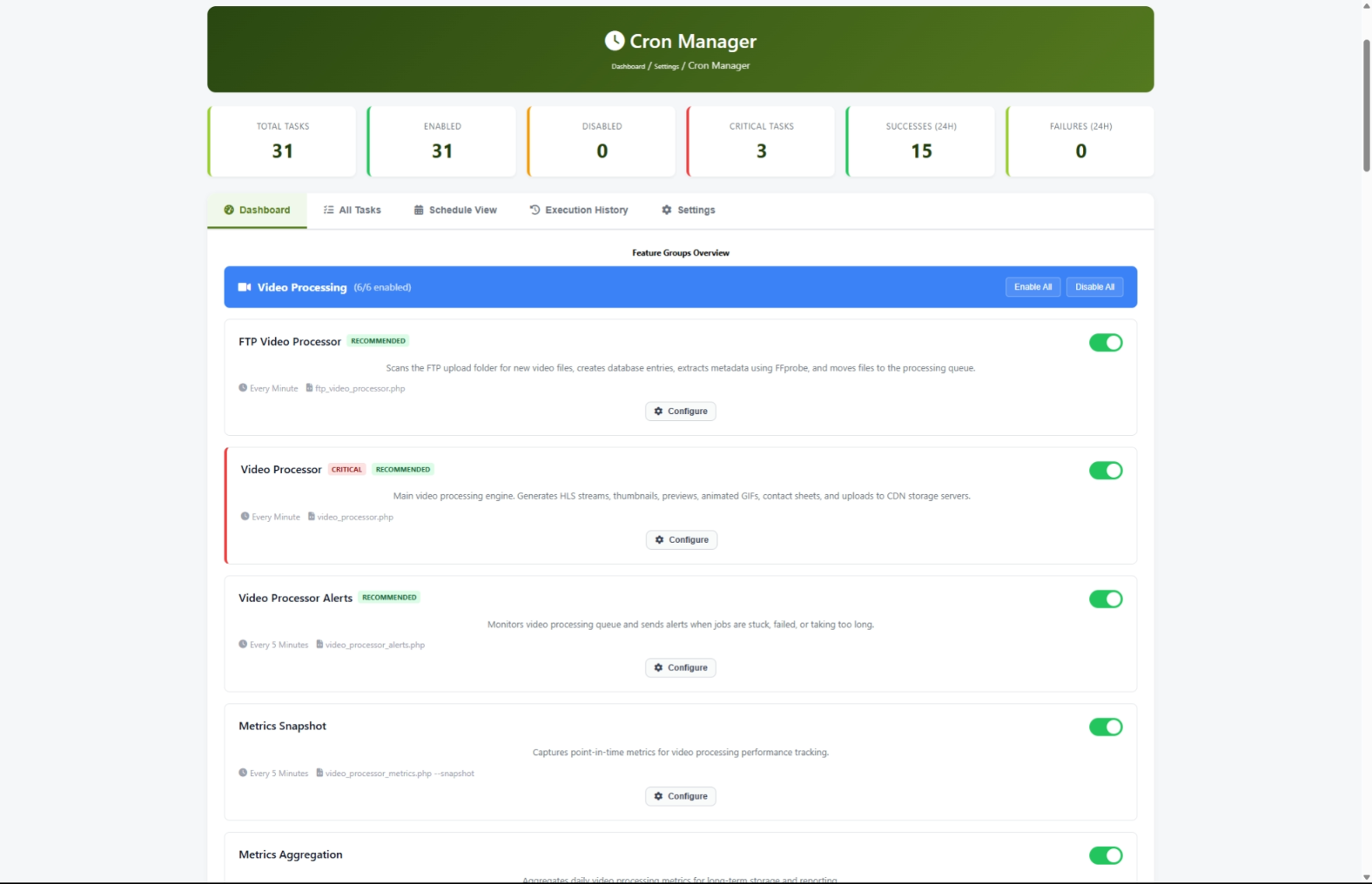
When you open the Cron Manager, you will see a row of statistics at the top and five tabs below them.
Statistics Bar
At the top of the page, six cards give you a quick snapshot of your automated tasks:

Tab Navigation
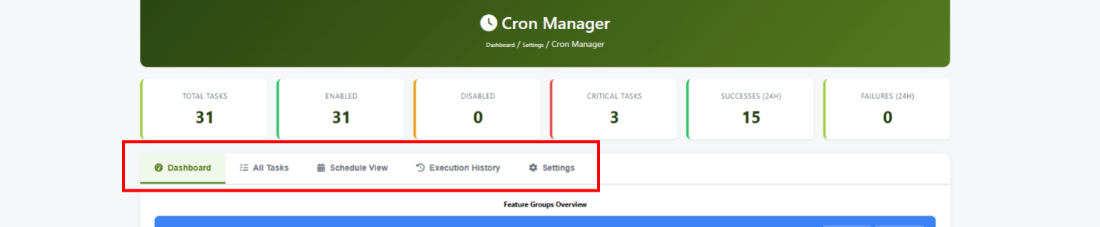
The page is organized into five tabs:
Common Tasks
How to Check if Everything Is Running Smoothly
- Open the Cron Manager page.
- Look at the Successes (24h) and Failures (24h) cards at the top.
- If Failures shows zero, your tasks are running well.
- If Failures shows a number greater than zero, click the Execution History tab to see what went wrong.
How to Turn a Task On or Off
- Go to the Dashboard tab or the All Tasks tab.
- Find the task you want to change.
- Click the toggle switch next to the task name. Green means on, gray means off.
- The page reloads and a confirmation message appears.
How to Turn On or Off an Entire Feature Group
Instead of toggling tasks one by one, you can control all tasks in a group at once.
- Go to the Dashboard tab.
- Find the group you want to change (for example, Live Cams or Video Processing).
- Click Enable All to turn on every task in that group, or Disable All to turn them all off.
- A confirmation message appears once the change is saved.
How to Change How Often a Task Runs
- Find the task you want to adjust on the Dashboard or All Tasks tab.
- Click the Configure button on that task.
- A settings window opens. Read the Impact Warning in the orange box -- it explains why the current schedule was chosen and what might happen if you change it.
- Select a new schedule from the Schedule dropdown. Options range from every minute to once a week.
- Click Save Changes.
How to Reset a Task to Its Original Schedule
- Click the Configure button on the task.
- In the settings window, look for the Default Schedule line near the bottom.
- Click Reset to Default.
- Click Save Changes.
How to Set Up Email Alerts
Get notified by email when a task fails or takes too long.
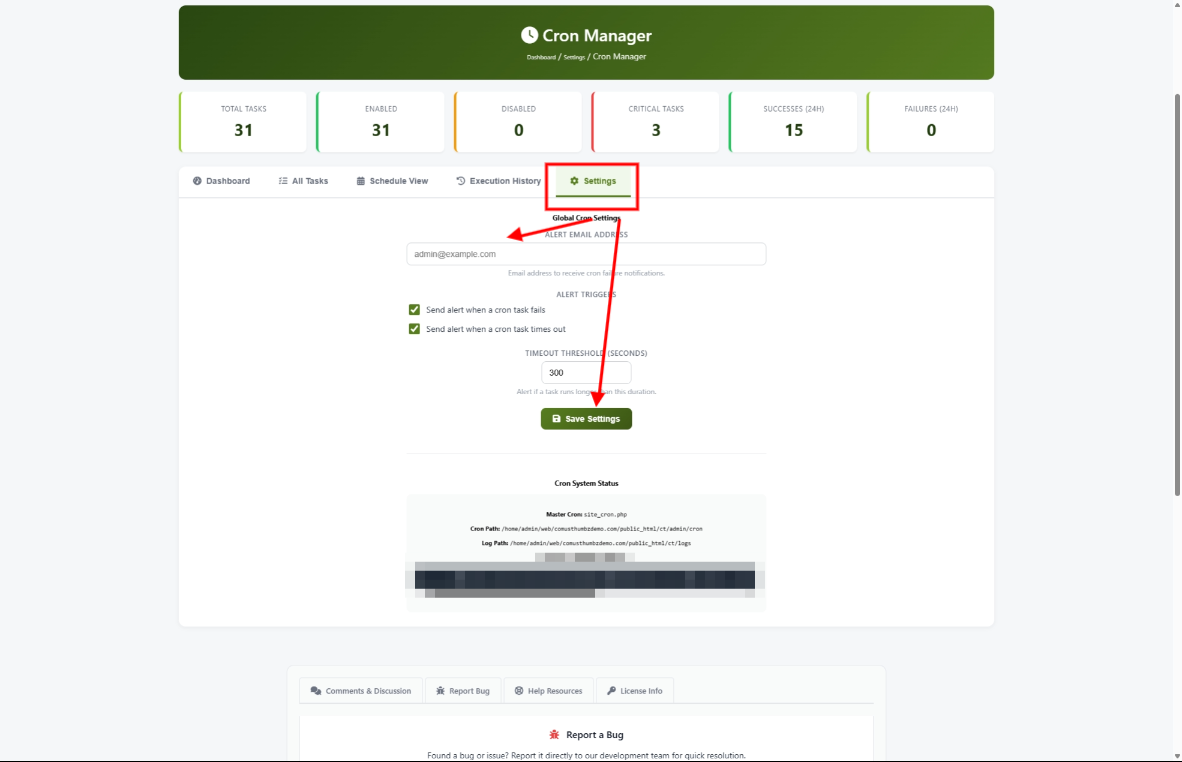
- Click the Settings tab.
- Type your email address into the Alert Email Address field.
- Check the boxes for the alerts you want:
- Send alert when a cron task fails -- You receive an email if any task encounters an error.
- Send alert when a cron task times out -- You receive an email if any task takes longer than the allowed time.
- Set the Timeout Threshold to control how many seconds a task can run before it is considered too slow. The default is 300 seconds (5 minutes).
- Click Save Settings.
How to Review Recent Task Activity
- Click the Execution History tab.
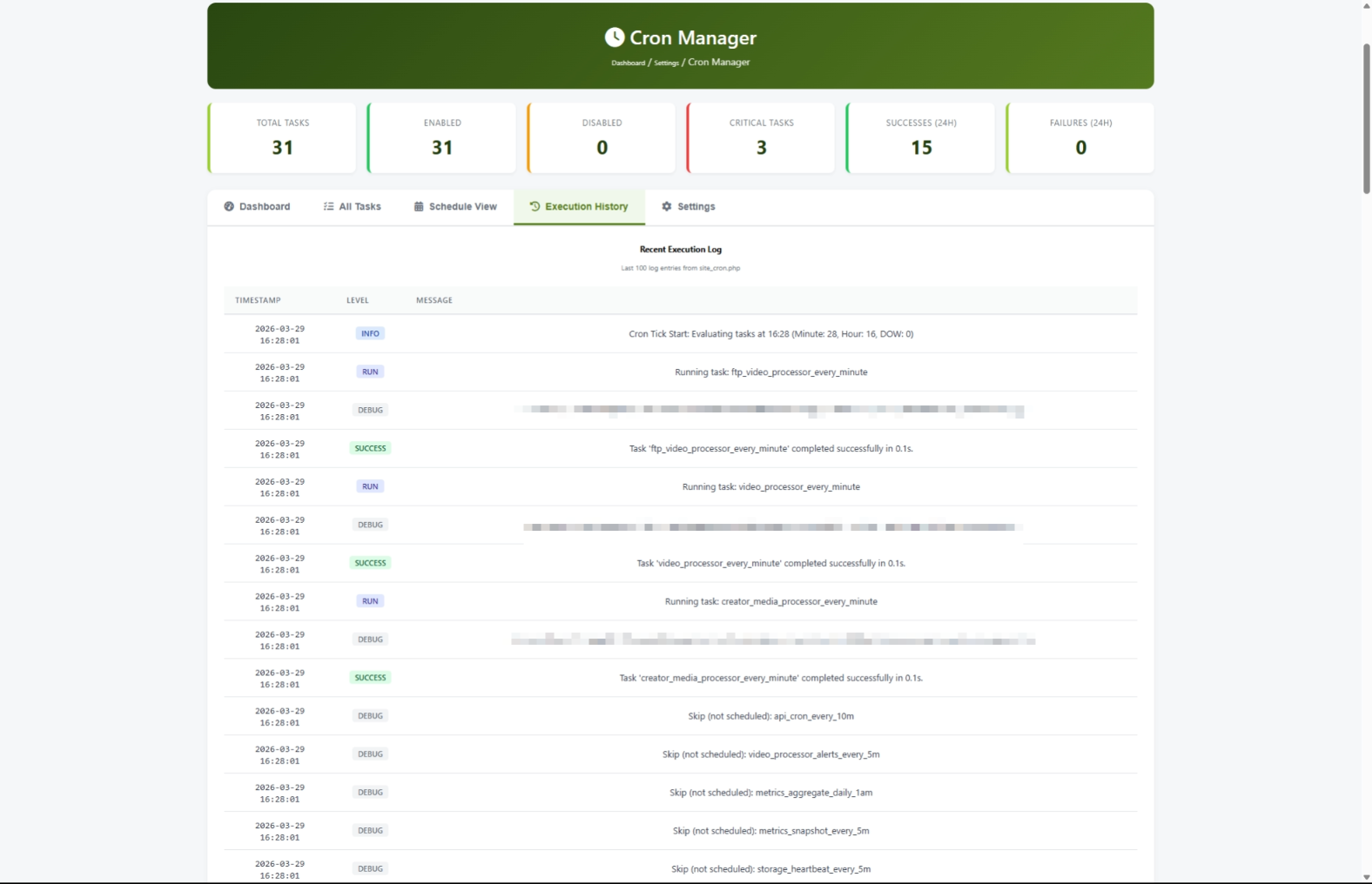
- You will see a list of recent entries showing when tasks ran and whether they succeeded or failed.
- Each entry is color-coded:
- Green (Success) -- The task completed normally.
- Red (Error) -- The task failed. Read the message for details.
- Yellow (Warning) -- Something unusual happened but the task still ran.
- Blue (Info) -- General information about a task.
- Use this tab to verify that your tasks are running on schedule.
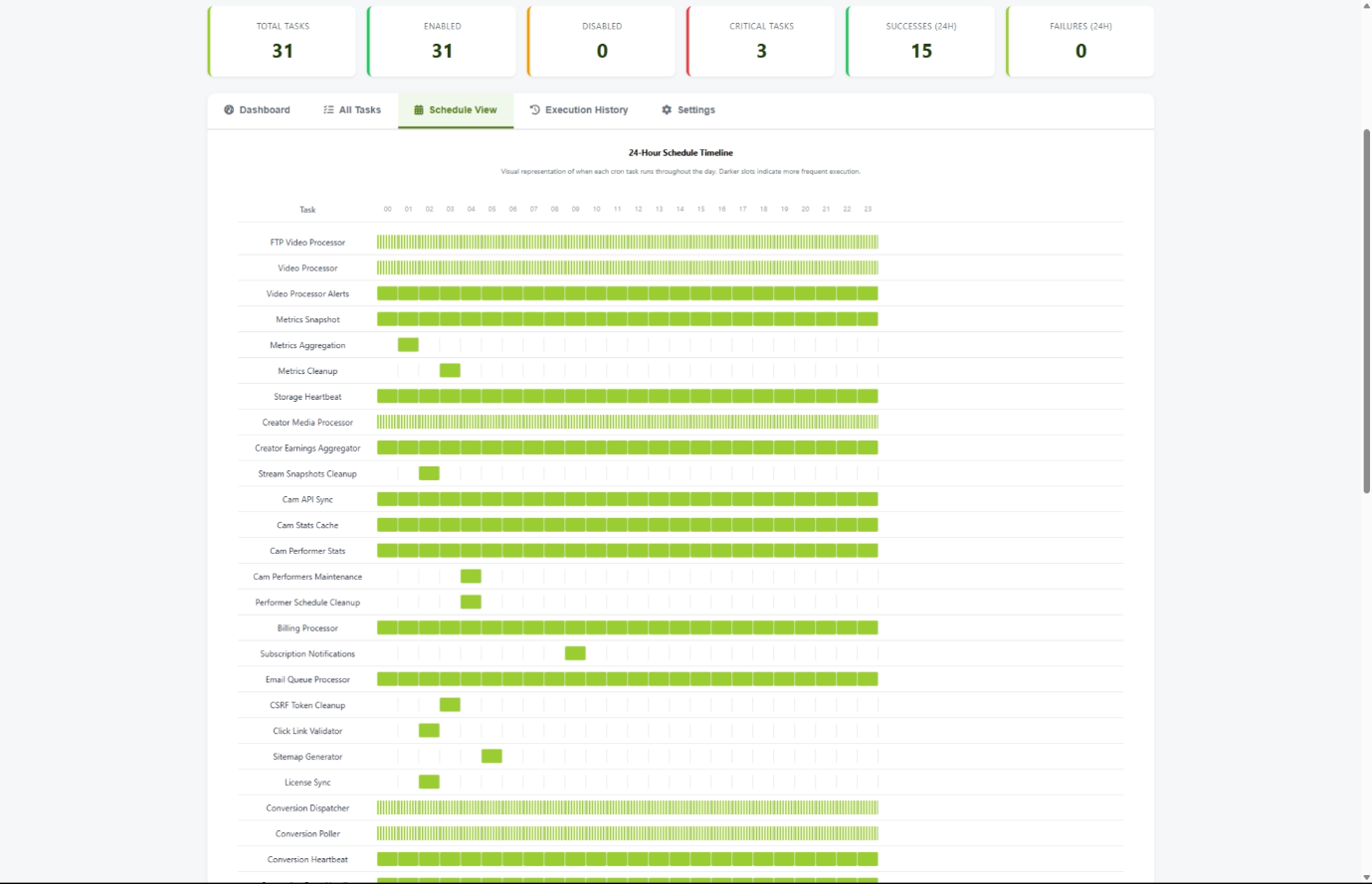
How to See When Tasks Run Throughout the Day
- Click the Schedule View tab.
- You will see a visual timeline with hours across the top (0 through 23) and task names down the left side.
- Green blocks show the hours when a task runs.
- Only enabled tasks appear on this timeline.
Understanding the Feature Groups
Your automated tasks are organized into nine groups. Here is what each group handles and why it matters for your site visitors.
Understanding Feature Toggles
Some task groups are connected to your site's feature settings. If you have turned off a feature entirely (for example, you turned off live cams because you do not use them), the tasks in that group will automatically be skipped -- even if they show as enabled in the Cron Manager.
This means you do not need to manually disable tasks for features you are not using. Just turn off the feature in Feature Toggles and the related tasks stop on their own.
Settings and Options
Schedule Options
When configuring a task, you can choose from these schedules:
Tips for New Users
- Start with the default schedules. They have been chosen to work well for most sites.
- Set up email alerts right away so you are notified if something breaks.
- If you are not using a feature (like live cams or creator profiles), use Feature Toggles to turn it off rather than disabling individual tasks here. It is cleaner and easier to manage.
- Check the Execution History tab weekly to make sure everything is running.
- Use the Schedule View tab to make sure you are not overloading your server at any particular time of day.
- Never leave critical tasks (Video Processing, Billing, Email) disabled for long periods.
Troubleshooting
Tasks are enabled but nothing seems to be happening
What you see: Tasks show as enabled with green toggles, but no new videos are processing, emails are not sending, or other automated work is not getting done.
How to fix it:
- Click the Execution History tab and check if there are any recent entries.
- If you see no entries at all, the master scheduler may not be set up. Contact your hosting provider or the person who installed ComusThumbz and ask them to verify that the scheduled task system is running.
- If you see entries that say a feature is disabled, go to Admin Panel > Settings > Feature Toggles and make sure the relevant feature is turned on.
The Execution History tab says "No execution logs found"
What you see: The Execution History tab is empty with a message that no logs were found.
How to fix it:
- This usually means the background scheduler has not run yet or is not set up.
- Contact your hosting provider or system administrator and ask them to confirm that the background task scheduler is configured and running.
I set up email alerts but I am not receiving them
What you see: Tasks are failing (the Failures card shows a number), but you are not getting any emails.
How to fix it:
- Go to the Settings tab and double-check that your email address is entered correctly.
- Make sure the alert checkboxes are checked.
- Check your spam or junk folder.
- If you still do not receive alerts, contact your hosting provider -- the server's email system may need to be configured.
I accidentally disabled a critical task
What you see: You turned off a task and now something on your site is not working (videos not processing, emails not sending, etc.).
How to fix it:
- Go to the Dashboard tab.
- Find the task you disabled and click its toggle switch to turn it back on.
- The task will resume on its next scheduled run. Most tasks run every few minutes, so the fix should take effect quickly.