Cam API Settings
What This Page Does
This page lets you connect your site to live webcam platforms so you can display live cam performers to your visitors. You can set up connections to up to 12 different cam sites, control which ones are active, and choose which performers appear on your site.
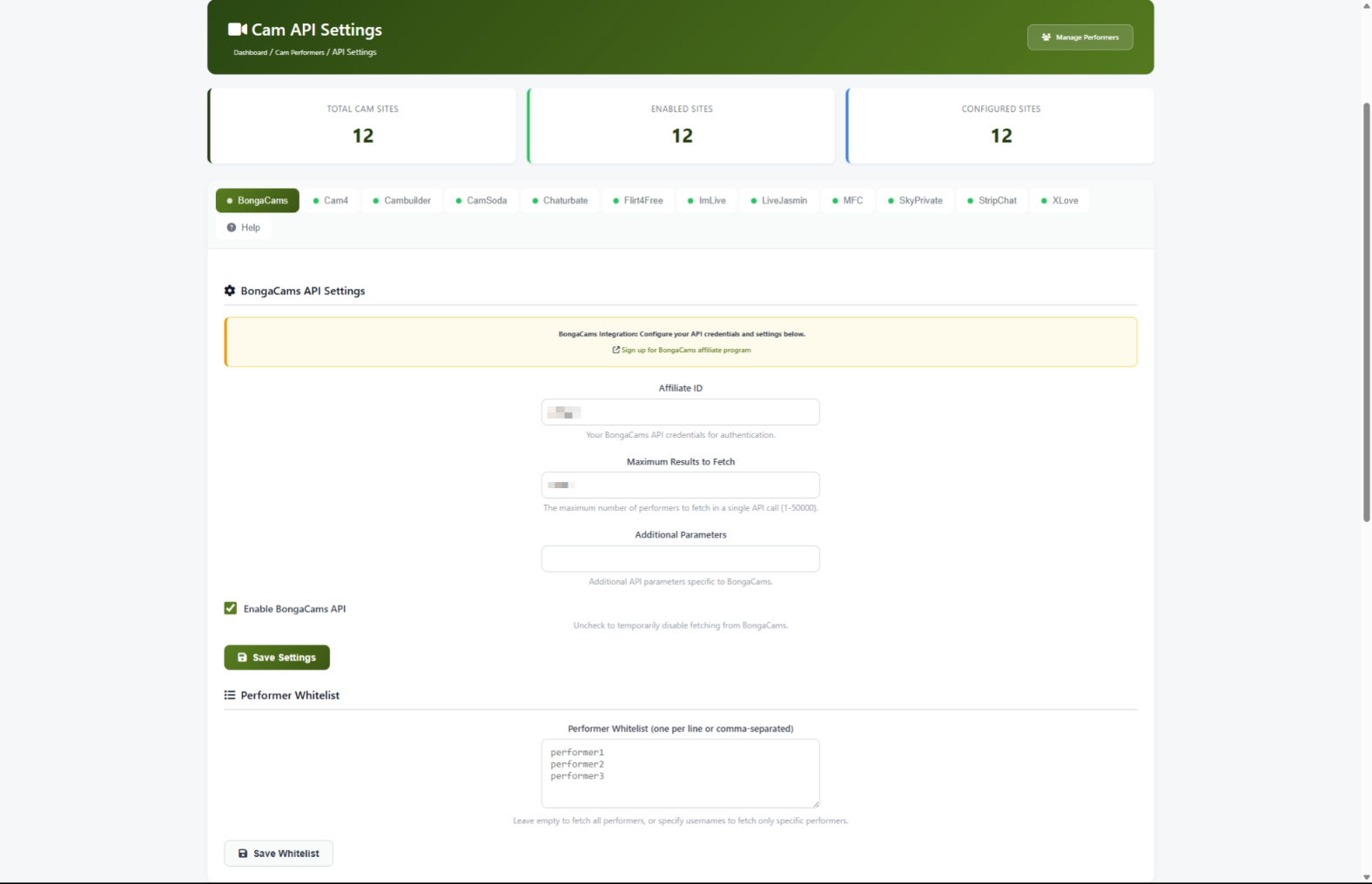
How to Get Here
Navigate to Admin Panel > Settings > Cams Settings
Understanding the Page
When you open this page, you will see three main areas.
Statistics Cards
At the top of the page, three cards give you a quick summary:

Cam Site Tabs
Below the statistics, you will see a row of tabs -- one for each cam site, plus a Help tab at the end. Click any tab to view and edit that cam site's settings.
- A green dot next to a tab name means that cam site is turned on.
- A gray dot means it is turned off.
- The tab you were last working on stays selected even after you save changes or refresh the page.

Settings Area
Each cam site tab has two sections:
- API Settings -- Where you enter your affiliate credentials and control whether the site is active.
- Performer Whitelist -- Where you can optionally list specific performers you want to import.
Common Tasks
How to Set Up a Cam Site for the First Time
Before you can display performers from a cam site, you need to sign up for that site's affiliate program and enter your credentials here.
- Click the tab for the cam site you want to set up (for example, Chaturbate).
- Look for the yellow information box near the top of the settings area. It contains a link to the cam site's affiliate signup page. Click that link and complete the signup process.
- Once you have your affiliate credentials, come back to this page.
- Enter your credentials in the fields provided (see the credential guide below for what each site needs).
- Set the Maximum Results to Fetch field. Start with
1000-- you can increase this later. - Check the Enable checkbox to turn this cam site on.
- Click Save Settings.
How to Enter Credentials for Each Cam Site
Each cam site requires slightly different information. Use this table to know what to enter:
How to Turn a Cam Site On or Off
- Click the tab for the cam site you want to change.
- Check the Enable checkbox to turn it on, or uncheck it to turn it off.
- Click Save Settings.
When you turn a cam site on or off, the change takes effect on your public site right away. Turning off a site hides all of its performers from your visitors, but their data is kept safe in case you want to turn it back on later.
How to Use the Performer Whitelist
By default, your site imports all available performers from each cam site. If you want to show only specific performers, you can use the whitelist feature.
- Click the tab for the cam site you want to manage.
- Scroll down to the Performer Whitelist section.
- Type performer usernames into the text box, one per line. For example:
performer1
   performer2
performer3- Click Save Whitelist.
How to Set Up a Whitelabel Domain
Some cam sites let you use your own branded domain instead of theirs in affiliate links. This makes the experience more seamless for your visitors.
- Click the tab for the cam site you want to brand.
- Look for the Whitelabel Domain field. If this field is not shown, the cam site does not support whitelabel domains.
- Enter your custom domain.
- Click Save Settings.
How to Adjust How Many Performers Are Imported
The Maximum Results to Fetch setting controls how many performers your site pulls in from each cam platform.
- Click the tab for the cam site you want to adjust.
- Change the number in the Maximum Results to Fetch field. You can set any number from 1 to 50,000.
- Click Save Settings.
Settings and Options
The Help Tab
Click the Help tab (the last tab with a question mark icon) to find built-in documentation including:
- Getting Started -- A quick overview of how to set up cam sites
- Update Frequency -- How often performer data refreshes for each platform
- Available Cam Sites -- A description of each of the 12 supported platforms
- Troubleshooting -- Tips for solving common problems
Tips for New Users
- Start with just one or two cam sites. Chaturbate and Stripchat are the most popular and easiest to set up.
- Make sure the main Live Cams feature is turned on in your Feature Toggles page. If it is turned off, no cam content will appear on your site regardless of what you set up here.
- Keep your API credentials private. Treat them like passwords.
- After saving your settings, allow a few minutes for performers to start appearing on your site. The system needs time to fetch performer data from the cam platforms.
- Check the statistics cards at the top of the page to confirm your setup is correct. The Enabled Sites count should match how many sites you turned on.
Troubleshooting
Performers are not showing up on my site
What you see: You set up a cam site and enabled it, but no performers appear on your public site.
How to fix it:
- Go back to this settings page and confirm the cam site shows a green dot on its tab. If the dot is gray, check the Enable checkbox and click Save Settings.
- Go to Admin Panel > Feature Toggles and make sure the Live Cams master feature is turned on. If this is off, no cam content appears anywhere on your site.
- Wait a few minutes. Performer data is fetched automatically on a schedule, and it may take a short time after your first setup.
- If performers still do not appear after 15 minutes, contact your site administrator or hosting support to make sure the automated tasks (background jobs) are running.
I saved my settings but got an error message
What you see: A red error message appears at the top of the page after clicking Save Settings.
How to fix it:
- Double-check that your credentials are entered correctly. Copy and paste them directly from the cam site's affiliate dashboard to avoid typos.
- Make sure there are no extra spaces before or after your credentials.
- Try saving again. If the error persists, note the error message and contact support.
I cannot edit any settings -- everything is grayed out
What you see: All fields are disabled and you see an orange banner at the top of the page saying "Demo Mode."
How to fix it: Your site is currently running in demo mode, which is a read-only preview. Contact your site administrator to switch off demo mode so you can make changes.
A cam site tab is missing
What you see: You expect to see 12 cam site tabs, but one or more are missing.
How to fix it: Try refreshing the page. The system creates all 12 cam site entries automatically when you first visit the page. If a tab is still missing after refreshing, contact support.
I turned off a cam site but performers still appear
What you see: You disabled a cam site but its performers are still visible on the public site.
How to fix it:
- Make sure you clicked Save Settings after unchecking the Enable checkbox.
- Try logging out of the admin panel and logging back in. This clears the settings cache.
- Check the Feature Toggles page to confirm the individual cam site feature is also turned off there.