CDN Cost Calculator
What This Page Does
This page helps you compare the monthly costs of six popular CDN (Content Delivery Network) providers so you can choose the best one for hosting and delivering your site's videos and media files. You enter your expected storage and traffic needs, and the calculator instantly shows you which provider offers the best deal.
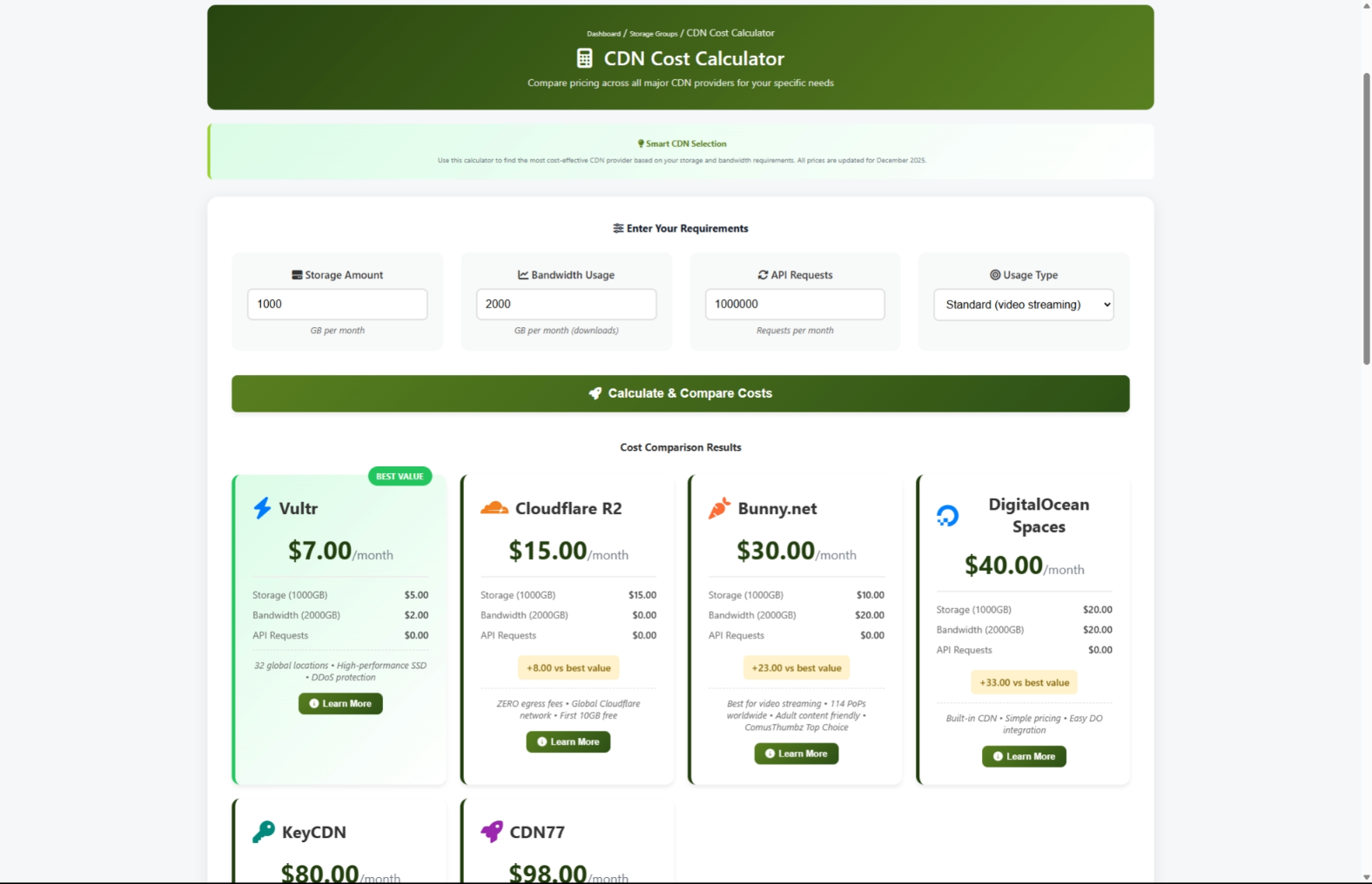
How to Get Here
Navigate to Admin Panel > Engine > Storage Groups > CDN Cost Calculator
You can also reach this page by clicking the Compare CDN Costs button on the Storage Servers page.
Understanding the Page
When you open the CDN Cost Calculator, you see three main areas: an information banner at the top, the input fields where you enter your needs, and the results area that appears after you calculate.
Information Banner
A green banner at the top briefly explains what the calculator does and how to use it. This is for reference only -- no action is needed here.
Input Fields
Below the banner, you see four fields where you describe your site's needs. These are the numbers the calculator uses to estimate your monthly costs.
Results Area
After you calculate, a set of provider cards appears below the inputs. Each card shows one CDN provider's estimated monthly cost, broken down by category. A bar chart also appears to help you visually compare all providers at a glance.
Common Tasks
How to Calculate Your CDN Costs
This is the main task on this page. Use it whenever you want to find the most affordable CDN provider for your site.
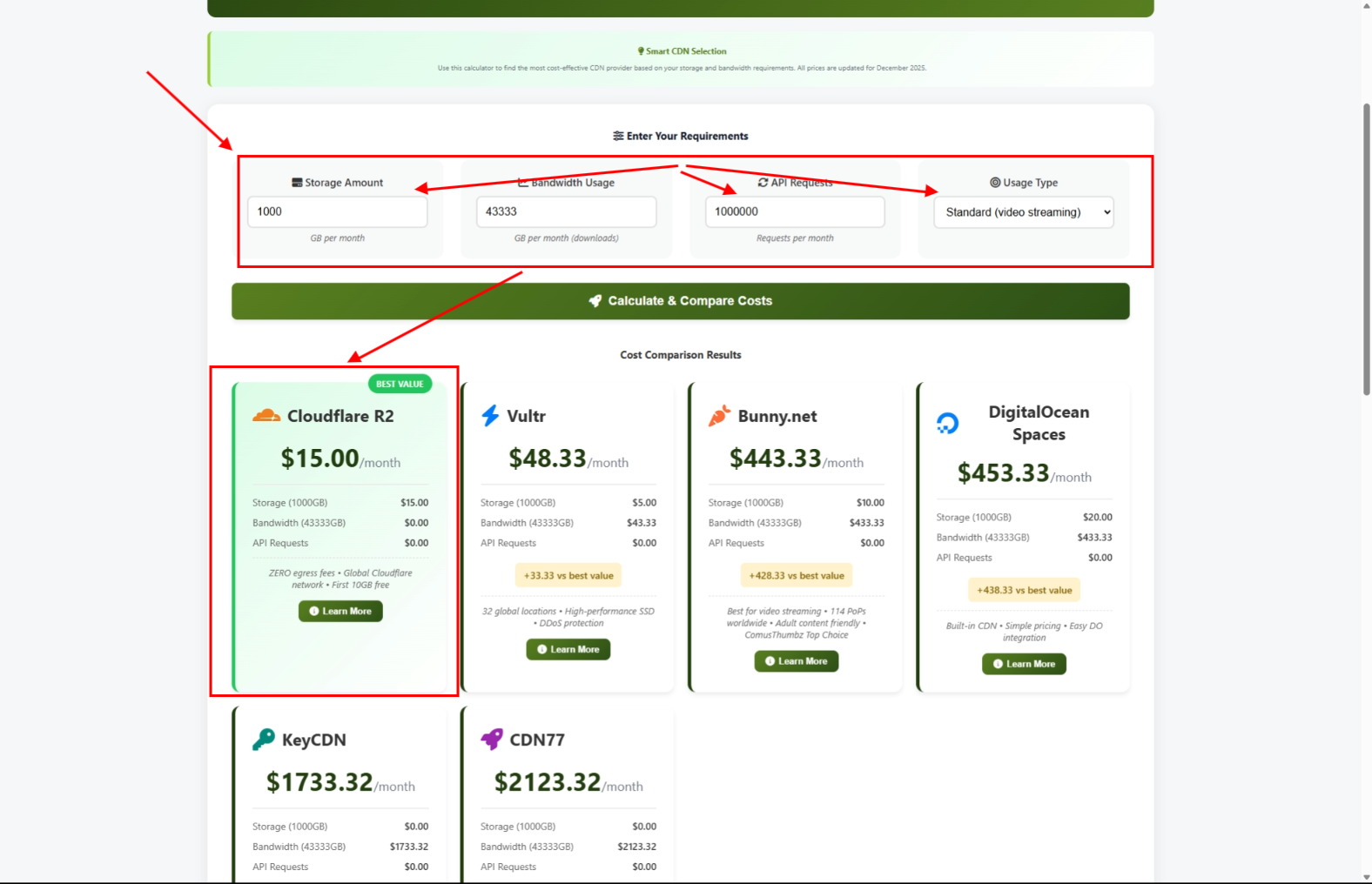
- Enter your Storage Amount in GB. This is how much space your videos and media files take up. For example, if you have about 1 TB of videos, type
1000. - Enter your Bandwidth Usage in GB. This is how much data your visitors download each month by watching videos and viewing images. For a busy video site, this is usually much higher than your storage amount.
- Enter your API Requests count. This is the number of times your site communicates with the CDN each month. If you are not sure, the default value works for most sites.
- Select a Usage Type from the dropdown. Choose the option that best describes your site:
- Video Streaming -- Best for most video sites
- Live Streaming -- If you host live broadcasts
- Archive/Backup -- If you mainly store files for long-term keeping
- Global Distribution -- If your audience is spread around the world
- Click the Calculate & Compare Costs button.
- Scroll down to see the results.
How to Read the Results
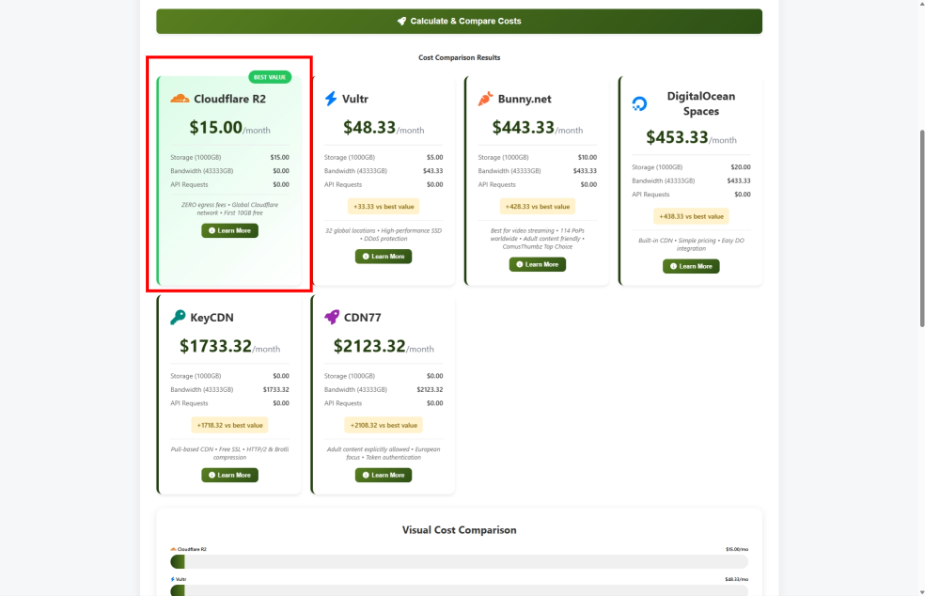
After calculating, you see a card for each CDN provider, sorted from cheapest to most expensive.
- Look for the card marked with a green "BEST VALUE" badge. This is the most affordable option based on your numbers.
- Each card shows the total monthly cost in large text at the top.
- Below the total, you see a cost breakdown showing how much you would pay for storage, bandwidth, and API requests separately.
- Cards that are not the cheapest option show a yellow badge indicating how much more they cost compared to the best value. For example, "+$25.00 vs best value" means that provider costs $25 more per month.
- Read the provider notes at the bottom of each card for quick highlights about that provider's strengths.
How to Compare Providers Visually
Below the result cards, a horizontal bar chart shows all six providers ranked by cost.
- Scroll down past the cards to find the Cost Comparison chart.
- Each bar represents one provider. Longer bars mean higher costs.
- The monthly cost is displayed next to each provider's name.
How to Learn More About a Provider
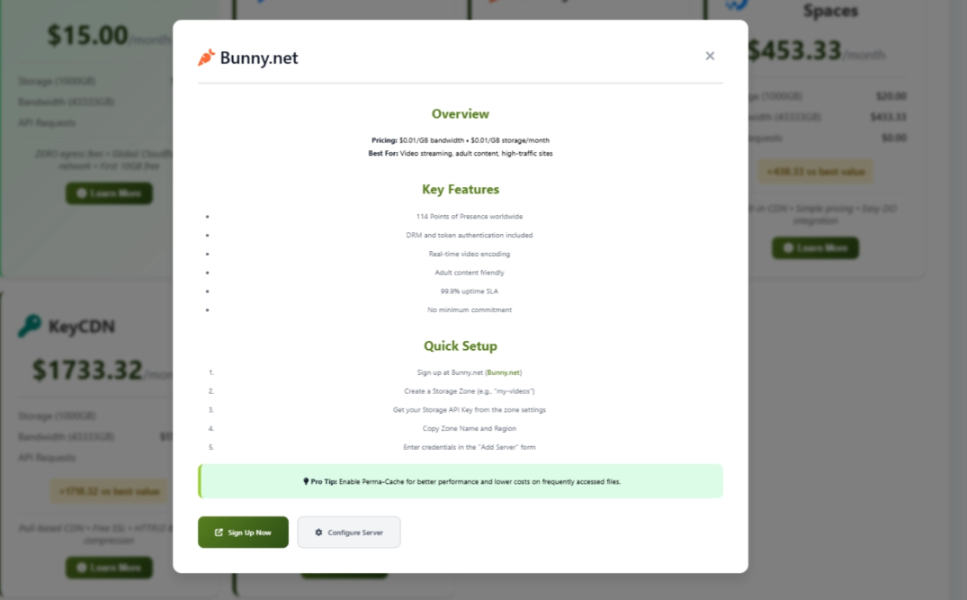
Each provider card has a Learn More button that opens a detailed information window.
- Find the provider you are interested in.
- Click the Learn More button on their card.
- A popup window appears with:
- An overview of the provider and their pricing approach
- A list of key features
- Step-by-step setup instructions to get started with that provider
- Special tips or notes specific to that provider
- Click Sign Up Now to visit the provider's website and create an account.
- Click Configure Server to go to the Storage Servers page and add this provider to your site.
- To close the popup, click the X button, click outside the popup, or press the Escape key on your keyboard.
How to Find Adult-Content-Friendly Providers
Not all CDN providers allow adult content on their platform. The calculator makes it easy to identify which ones do.
- Run the calculator with your storage and bandwidth needs.
- Look at the provider notes on each card. The following providers explicitly support adult content:
- Bunny.net -- Adult content friendly
- Vultr -- Adult content allowed
- CDN77 -- Adult content explicitly allowed
- Click Learn More on any of these providers for setup details.
Settings and Options
Assumptions to Keep in Mind
The results section includes a yellow box listing important assumptions. Here is what they mean:
- Pricing is based on current public rates. Providers may change their prices at any time.
- Cloudflare R2 has zero egress fees. This means you pay nothing for bandwidth with R2, which can save a lot of money on high-traffic sites.
- Volume discounts may apply. If your site uses very large amounts of storage or bandwidth, you may be able to negotiate lower rates directly with a provider.
- Adult content policies vary. Not every provider allows adult content. The calculator notes which ones do.
- Regional pricing may differ. Some providers charge different rates depending on where in the world your traffic comes from.
- API request free tiers exist. Most providers include a large number of free API requests, so this cost is often zero.
Choosing the Right Provider
Here are some straightforward recommendations based on common situations:
Tips for New Users
- Start with the default values to get a quick overview, then adjust the numbers to match your site's actual needs.
- If you are just starting out, your bandwidth usage will be low. Recalculate as your traffic grows to make sure you are still on the best provider.
- For video sites, bandwidth is almost always the biggest cost. Pay special attention to each provider's bandwidth rate.
- Bookmark this page and check back every few months. CDN pricing changes regularly, and a cheaper option may become available.
Troubleshooting
The results are not appearing after I click Calculate
What you see: You click the Calculate & Compare Costs button but nothing happens below the inputs.
How to fix it:
- Make sure JavaScript is enabled in your browser. Most browsers have this on by default.
- Try refreshing the page.
- Clear your browser's cache (usually found under Settings > Privacy or History).
- Try a different browser such as Chrome, Firefox, or Edge.
The costs seem too high or too low
What you see: The estimated costs do not match what you expected or what you see on a provider's website.
How to fix it:
- Double-check the numbers you entered. Make sure you are using GB (not TB or MB).
- Remember that CDN providers may offer volume discounts for large accounts that are not reflected in the calculator.
- Visit the provider's website directly to confirm their current pricing, as rates may have changed since the calculator was last updated.
The Learn More popup is not opening
What you see: You click Learn More on a provider card but no popup appears.
How to fix it:
- Make sure you are clicking directly on the Learn More button text.
- Refresh the page and try again.
- Check if you have a browser extension (such as an ad blocker) that might be blocking popups.
- Try disabling browser extensions temporarily.
The page is not loading at all
What you see: A blank page or an error message when you try to open the CDN Cost Calculator.
How to fix it:
- Make sure you are logged in to the admin panel. If your session has expired, log in again.
- Try accessing the page through the menu:Admin Panel > Engine > Storage Groups > CDN Cost Calculator
- If the problem continues, contact your site administrator or support team.