Настройки Cam API
Что делает эта страница
Эта страница позволяет вам подключить ваш сайт к живым платформам веб-камеры, чтобы вы могли отображать живых исполнителей камеры своим посетителям. Вы можете настроить соединения до 12 различных кулачков, контролировать, какие из них активны, и выбирать, какие исполнители появляются на вашем сайте.
Как добраться сюда
Навигация для Панель администратора Настройки > Настройки Cams
Понимание страницы
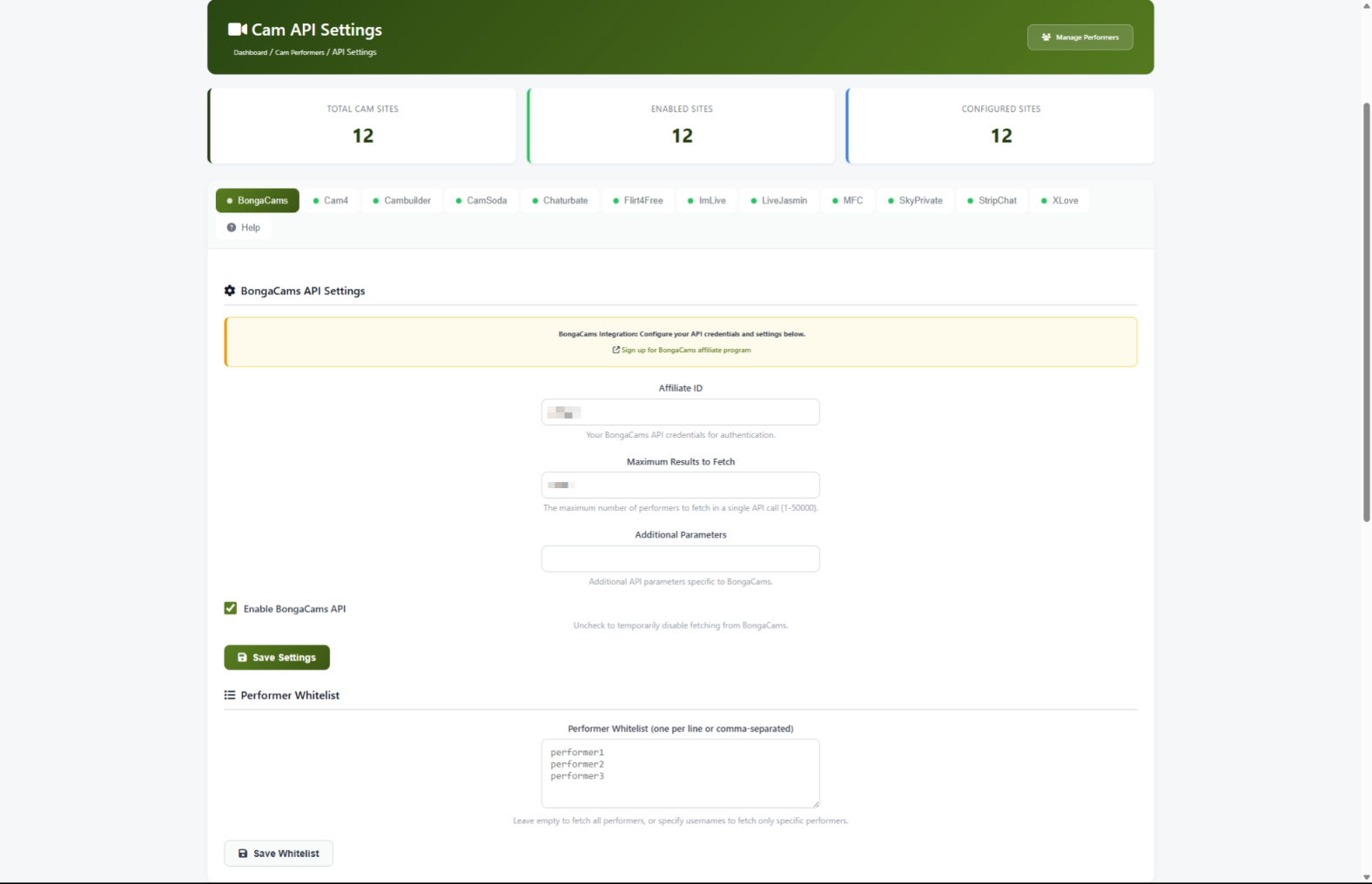
Когда вы откроете эту страницу, вы увидите три основные области.
Статистические карты
В верхней части страницы три карты дают краткое резюме:

Закладки сайта Cam
Ниже статистики вы увидите ряд вкладок - по одному для каждого кулачного сайта, плюс Помощь Закладка в конце. Нажмите любую вкладку, чтобы просмотреть и отредактировать настройки этого кулачного сайта.
- А. зеленая точка Рядом с именем вкладки означает, что сайт камеры включен.
- А. серая точка Это значит, что он выключен.
- Вкладка, над которой вы в последний раз работали, остается выбранной даже после сохранения изменений или обновления страницы.

Область расположения
Каждая вкладка сайта кулачка имеет два раздела:
- Настройки API - Где вы вводите свои партнерские учетные данные и контролируете, активен ли сайт.
- Исполнитель Whitelist - Где вы можете необязательно перечислить конкретных исполнителей, которые вы хотите импортировать.
Общие задачи
Как создать сайт в первый раз
Прежде чем вы сможете отображать исполнителей с веб-сайта, вам нужно зарегистрироваться в партнерской программе этого сайта и ввести свои учетные данные здесь.
- Нажмите вкладку для сайта камеры, который вы хотите настроить (например, Чатурбация).
- Ищите желтый информационный ящик в верхней части области настроек. Он содержит ссылку на страницу регистрации аффилированного лица веб-сайта. Нажмите на эту ссылку и завершите процесс регистрации.
- Как только у вас есть партнерские учетные данные, вернитесь на эту страницу.
- Введите свои учетные данные в предоставленных полях (см. руководство по учетным данным ниже для того, что нужно каждому сайту).
- Установить Максимальные результаты для получения поле. Начнем с
1000Вы можете увеличить это позже. - Проверь допускать Чекбокс, чтобы включить эту камеру.
- щелкнуть Сохранить настройки.
Как вводить учетные данные для каждого сайта Cam
Каждый сайт требует немного разной информации. Используйте эту таблицу, чтобы знать, что ввести:
Как включить или выключить сайт Cam
- Нажмите вкладку для сайта камеры, который вы хотите изменить.
- Проверь допускать Чекбокс, чтобы включить его, или отключить его, чтобы выключить.
- щелкнуть Сохранить настройки.
Когда вы включаете или выключаете кулачный сайт, изменение сразу же вступает в силу на вашем общедоступном сайте. Отключение сайта скрывает всех его исполнителей от ваших посетителей, но их данные хранятся в безопасности, если вы хотите включить их позже.
Как использовать белый список исполнителя
По умолчанию ваш сайт импортирует всех доступных исполнителей с каждого сайта камеры. Если вы хотите показать только конкретных исполнителей, вы можете использовать функцию белого списка.
- Нажмите вкладку для сайта камеры, которым вы хотите управлять.
- Прокрутите вниз к Исполнитель Whitelist Раздел.
- Введите имена пользователей в текстовое поле, по одному на строку. Например:
- щелкнуть Сохранить белый список.
Как создать домен Whitelabel
Некоторые веб-сайты позволяют вам использовать свой собственный фирменный домен вместо их в партнерских ссылках. Это делает опыт более удобным для ваших посетителей.
- Нажмите вкладку для сайта камеры, который вы хотите брендировать.
- Ищите Область Whitelabel поле. Если это поле не показано, сайт камеры не поддерживает домены whitelabel.
- Введите свой пользовательский домен.
- щелкнуть Сохранить настройки.
Как отрегулировать, сколько исполнителей импортировано
The Максимальные результаты для получения Настройка контролирует, сколько исполнителей ваш сайт привлекает с каждой камеры платформы.
- Нажмите вкладку для сайта камеры, который вы хотите настроить.
- Измените число в Максимальные результаты для получения поле. Вы можете установить любое число от 1 до 50 000.
- щелкнуть Сохранить настройки.
Настройки и опции
Вкладка помощи
Кликни Помощь вкладка (последняя вкладка с значком вопросительного знака) для поиска встроенной документации, включающей:
- Начало работы - Быстрый обзор того, как настроить кулачные сайты
- Обновление частоты Как часто обновляются данные для каждой платформы
- Доступные сайты Cam Описание каждой из 12 поддерживаемых платформ
- устранение неполадок Советы по решению общих проблем
Советы для новых пользователей
- Начните с одного или двух сайтов. Chaturbate и Stripchat являются самыми популярными и простыми в настройке.
- Убедитесь, что главный Live Cams Включается функция в вашем Особенности Toggles Страница. Если он выключен, на вашем сайте не будет отображаться видеокамера, независимо от того, что вы настроили здесь.
- Держите свои учетные данные API приватными. Относитесь к ним как к паролям.
- Сохранив настройки, дайте несколько минут, чтобы исполнители начали появляться на вашем сайте. Системе нужно время, чтобы получить данные от платформ камеры.
- Проверьте статистические карты в верхней части страницы, чтобы подтвердить правильность настройки. The Разрешенные сайты Счет должен соответствовать тому, сколько сайтов вы включили.
устранение неполадок
Исполнители не появляются на моем сайте
Что ты видишь: Вы настроили кулачный сайт и включили его, но на вашем общедоступном сайте не появляются исполнители.
Как это исправить:
- Вернитесь на эту страницу настроек и подтвердите, что сайт камеры показывает зеленая точка на его вкладке. Если точка серая, проверьте допускать Checkbox и click Сохранить настройки.
- Пойти Панель администратора Особенности Toggles И убедись, что Live Cams Мастер-функция включена. Если это не так, на вашем сайте нигде не появляется контент с камер.
- Подожди несколько минут. Исполнители данных автоматически извлекаются по расписанию, и это может занять некоторое время после первой настройки.
- Если исполнители по-прежнему не появляются через 15 минут, свяжитесь с администратором вашего сайта или службой поддержки хостинга, чтобы убедиться, что автоматизированные задачи выполняются.
Я сохранил настройки, но получил сообщение об ошибке
Что ты видишь: Красное сообщение об ошибке появляется в верхней части страницы после нажатия Сохранить настройки.
Как это исправить:
- Дважды проверьте, правильно ли введены ваши учетные данные. Копируйте и вставляйте их непосредственно с панели инструментов аффилированного сайта камеры, чтобы избежать опечаток.
- Убедитесь, что нет дополнительных мест до или после ваших учетных данных.
- Попробуй снова спасти. Если ошибка сохраняется, обратите внимание на сообщение об ошибке и контактную поддержку.
Я не могу редактировать какие-либо настройки - все отсеяно
Что ты видишь: Все поля отключены, и вы видите оранжевый баннер в верхней части страницы с надписью «Demo Mode».
Как это исправить: Ваш сайт в настоящее время работает в демонстрационном режиме, который является предварительным просмотром только для чтения. Свяжитесь с администратором вашего сайта, чтобы отключить демонстрационный режим, чтобы вы могли вносить изменения.
Отсутствует закладка кулачного сайта
Что ты видишь: Вы ожидаете увидеть 12 вкладок сайта, но одна или несколько отсутствуют.
Как это исправить: Попробуйте обновить страницу. Система автоматически создает все 12 записей сайта, когда вы впервые посещаете страницу. Если вкладка все еще отсутствует после обновления, обратитесь в службу поддержки.
Я выключил камеру, но исполнители все еще появляются
Что ты видишь: Вы отключили кулачный сайт, но его исполнители все еще видны на общедоступном сайте.
Как это исправить:
- Убедитесь, что вы щелкнули Сохранить настройки После того, как проверят допускать Чекбокс.
- Попробуйте выйти из панели администратора и войти обратно. Это очищает кэш настроек.
- Проверь Особенности Toggles Страница для подтверждения индивидуальной функции кулачного сайта также отключена.