Серверные настройки
Настройка сервера для ComusThumbz
Что делает это руководство
Это руководство проведет вас через настройку веб-сервера для запуска ComusThumbz. Вы узнаете, как подготовить свою среду хостинга шаг за шагом, независимо от того, используете ли вы панель управления, такую как cPanel или HestiaCP, или настраиваете новый сервер самостоятельно.
К концу этого руководства ваш сервер будет готов установить и запустить ComusThumbz с правильной обработкой видео, обработкой изображений и функциями сайта.
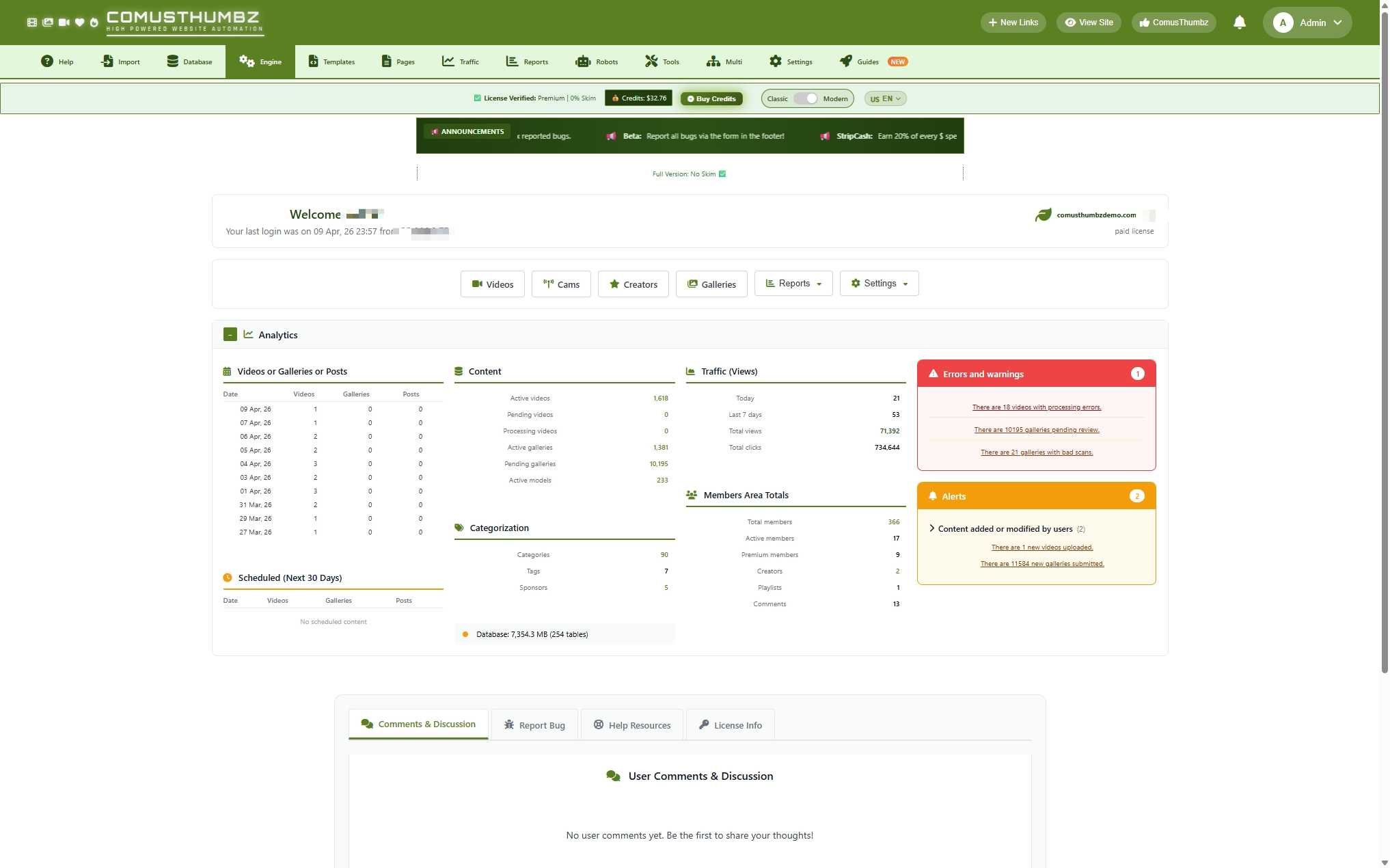
Для кого это руководство
Это руководство написано для владельцев сайтов, которым необходимо подготовить сервер для ComusThumbz. Вы должны использовать это руководство, если:
- Вы только что приобрели хостинг или сервер и должны настроить его.
- Вы переносите ComusThumbz на новый сервер
- Ваш текущий сервер работает неправильно, и вам нужно исправить настройку.
Вам не нужно программирование или передовые технические знания, чтобы следовать этому руководству. Мы предоставим четкие пошаговые инструкции для каждого типа хостинга.
Выбор вашего типа хостинга
ComusThumbz может работать на нескольких типах хостинга. Вот что вам нужно знать о каждом из них:
Типы хостинга по сравнению
Что нужно вашему серверу
Как минимум, ваш хостинг должен:
- 1 ГБ RAM (4 ГБ или более рекомендуется для видео сайтов)
- 1 CPU Core (4+ ядра рекомендуется)
- 10 ГБ дискового пространства (зависит от того, сколько контента вы будете размещать)
- Ubuntu 20.04+ или аналогичный Linux операционная система
Понимание процесса установки
Независимо от того, какой тип хостинга вы выберете, процесс установки следует тем же основным шагам:
- Выберите правильные версии программного обеспечения Убедитесь, что у вас есть недавнее совместимое программное обеспечение
- Настройка настроек - Корректировка ограничений и разрешений для загрузки видео
- Установите необходимые инструменты - Добавление программного обеспечения, которое обрабатывает видео и изображения
- Скачать файлы ComusThumbz - Размещение приложения на вашем сервере
- Установить разрешения Убедитесь, что программное обеспечение может читать и записывать файлы
- Расписание автоматизированных задач Настройка фоновых заданий, которые обрабатывают видео
- Запустите установщик - Завершение настройки через ваш веб-браузер
Мы пройдем каждый шаг для вашего конкретного типа хостинга.
Настройка хостинга cPanel
cPanel является наиболее распространенной панелью управления на совместном и VPS хостинге. Вот как настроить его для ComusThumbz.
Шаг 1: Выберите версию PHP
- Войдите в свой аккаунт cPanel
- Найдите раздел под названием Программное обеспечение
- щелкнуть MultiHP менеджер
- Проверьте поле рядом с вашим доменным именем
- Из выпадающего списка выберите PHP 8.3. (или самая высокая версия 8.x)
- щелкнуть Применять
Шаг 2: Настройка настроек PHP
- Возвращайся в Программное обеспечение раздел
- щелкнуть Редактор MultiPHP INI
- Выбрать Режим редактора на вершине
- Выберите свой домен из выпадающего
- Найти и обновить эти настройки:
- щелкнуть Спасти в нижней части
Шаг 3: Включить функции обработки видео
On shared hosting, you may not be able to do this yourself. Contact your hosting provider and ask them to enable these PHP functions for your account:
exec
- shellexec
- passthru
- procopen
- popen
Tell them: "I need these functions enabled for video processing on my site."
If you have WHM access (VPS or reseller hosting):
Log in to WHMGo to Service Configuration > PHP Configuration Editor
- Find the setting called disablefunctions
- Remove the functions listed above from that line
- Click Save and Rebuild
Step 4: Create Your Database
- In cPanel, go to Databases > MySQL Databases
- Under Create New Database, enter a name like
comus - Click Create Database
- Scroll down to Add New User
- Create a username and strong password
- Click Create User
- Scroll down to Add User To Database
- Select your database and user from the dropdowns
- Click Add
- Check ALL PRIVILEGES on the next screen
- Click Make Changes
Step 5: Upload ComusThumbz Files
Option A: Using File Manager
- In cPanel, go to Files > File Manager
- Navigate to the publichtml folder
- Click Upload at the top
- Upload your ComusThumbz zip file
- Once uploaded, right-click the zip file and choose Extract
- Delete the zip file after extracting
Option B: Using FTP
- Use an FTP program like FileZilla or WinSCP
- Connect using these details:
- Host: yourdomain.com or ftp.yourdomain.com
- Username: your cPanel username
- Password: your cPanel password
- Navigate to the publichtml folder
- Upload all ComusThumbz files to this folder
Step 6: Set Up Automated Tasks
ComusThumbz needs to run background tasks every minute to process videos and maintain your site.
- In cPanel, go to Advanced > Cron Jobs
- Under Add New Cron Job, set the timing to:
- In the Command box, enter:
Replace username with your actual cPanel username.
- Click Add New Cron Job
Step 7: Complete the Installation
- Open your web browser
- Go to:
https://yourdomain.com/install/ - Follow the 7-step installation wizard
- When asked for database details, use the information from Step 4
- After installation completes, delete the
/install/folder
Setting Up HestiaCP (VPS)
HestiaCP is a free, modern control panel for virtual private servers. It gives you more control than shared hosting.
Step 1: Add Your Domain
- Log in to HestiaCP at
https://your-server-ip:8083 - Click the WEB tab at the top
- Click the green Add Web Domain button
- Type your domain name
- Check the box for SSL Support
- Check the box for Let's Encrypt
- Click Save
Step 2: Select PHP Version
- Stay on the WEB tab
- Find your domain in the list
- Click the wrench icon next to it
- From the PHP dropdown, select PHP 8.3
- Click Save
Step 3: Connect via SSH
For the remaining steps, you'll need to connect to your server using SSH. This lets you type commands directly.
On Windows:
- Download PuTTY or use Windows Terminal
- Connect to your server's IP address
- Use port 22
- Login with your HestiaCP username and password
On Mac/Linux:
- Open Terminal
- Type:
ssh username@your-server-ip - Enter your password when prompted
Step 4: Enable Video Processing
By default, HestiaCP disables the functions needed to process videos. Let's fix that.
Type these commands one at a time:
This opens a text editor. Press Ctrl+W to search, then type disablefunctions and press Enter.
You'll see a long line that looks like:
Remove these words from the line: exec,passthru,shellexec,procopen,popen
Press Ctrl+X to exit, then Y to save, then Enter to confirm.
Now restart PHP:
Step 5: Adjust Upload Limits
Still in SSH, run the same command to edit the PHP configuration:
Use Ctrl+W to search and update these values:
- Search for
memorylimitand change it to512M - Search for
maxexecutiontimeand change it to600 - Search for
uploadmaxfilesizeand change it to500M - Search for
postmaxsizeand change it to500M - Search for
maxinputvarsand change it to10000
Save (Ctrl+X, then Y, then Enter) and restart:
Step 6: Install Video Processing Software
ComusThumbz uses FFmpeg to process videos. Install it:
Verify it worked:
You should see version information. If you see an error, FFmpeg didn't install correctly.
Step 7: Upload Your Files
Back in HestiaCP (in your browser):
Click the FILES tab
- Navigate to:
/home/username/web/yourdomain.com/publichtml/ - Click Upload and select your ComusThumbz zip file
- After uploading, click Extract on the zip file
- Delete the zip file
Step 8: Set Up Automated Tasks
Back in SSH, type:
If asked to choose an editor, select nano (usually option 1).
Add this line at the bottom:
Replace username and yourdomain.com with your actual values.
Save (Ctrl+X, then Y, then Enter).
Step 9: Complete Installation
- In your browser, go to:
https://yourdomain.com/install/ - Follow the installation wizard
- After completion, delete the
/install/folder
Setting Up Plesk
Plesk is a popular control panel for VPS and dedicated servers.
Step 1: Add Your Domain
- Log in to Plesk
- Click Websites & Domains on the left
- Click Add Domain
- Enter your domain name and configure settings
- Enable SSL/TLS support and select Let's Encrypt
- Click OK
Step 2: Configure PHP
- Under Websites & Domains, find your domain
- Click PHP Settings
- Select PHP 8.3 (FPM application)
- Scroll down and set these values:
- Click Apply or OK
Step 3: Enable Video Processing Functions
Still in PHP Settings:
- Scroll to Additional directives section
- Add this line:
(That's just disablefunctions = with nothing after the equals sign)
- Click Apply or OK
Step 4: Install FFmpeg
Connect to your server via SSH and run:
For Ubuntu/Debian servers:
For CentOS/AlmaLinux servers:
Verify:
Step 5: Create Database
- In Plesk, go to Databases
- Click Add Database
- Enter database name:
comusthumbz - Create a username and strong password
- Grant all privileges
- Click OK
Step 6: Upload Files
Option A: Plesk File Manager
- Go to Files in Plesk
- Navigate to
httpdocs/ - Upload your ComusThumbz files
Option B: FTP/SFTP
Use the credentials shown in Plesk under FTP Access
Step 7: Set Up Automated Tasks
- Under your domain, click Scheduled Tasks
- Click Add Task
- Set schedule to run every minute:
- Command:
- Click OK
Step 8: Run Installer
Go to https://yourdomain.com/install/ and complete the setup.
Setting Up Cloudways
Cloudways provides managed cloud hosting with an easy-to-use panel.
Step 1: Launch Your Application
- Log in to Cloudways
- Click Launch > Application
- Select Custom PHP as the application type
- Choose your server size (2 GB RAM minimum recommended)
- Select cloud provider (DigitalOcean, Vultr, AWS, etc.)
- Enter names for your application and server
- Click Launch
Wait a few minutes for your server to be created.
Step 2: Configure PHP
- Click on your application
- Go to Application Settings > PHP Settings
- Set these values:
- PHP Version: 8.3
- Memory Limit: 512M
- Max Execution Time: 600
- Upload Max Filesize: 500M
- Post Max Size: 500M
- Max Input Vars: 10000
- Click Save Changes
Step 3: Enable Video Processing
Click on your Server (not application)Go to Settings & Packages > AdvancedFind PHP FPM Settings
- In the disablefunctions line, remove:
exec,shellexec,passthru,procopen,popen - Save changes
Step 4: Install FFmpeg
- Go to Server > Master Credentials
- Note the SSH username and password
- Connect via SSH using these credentials
- Run:
- Verify:
Step 5: Upload Files
- In Cloudways, go to your Application
- Note the SFTP details under Access Details
- Use an SFTP client to upload files to the
publichtml/folder
Step 6: Set Up Automated Tasks
In Cloudways, go to your ApplicationClick Cron Job ManagementClick Add Cron Job
- Schedule:
- Command:
- Click Add
Step 7: Complete Installation
Visit https://yourdomain.com/install/ to complete setup.
Running the Installation Wizard
After setting up your server, the final step is running the ComusThumbz installer. This is the same process regardless of which hosting you chose.
How to Access the Installer
Open your web browser and go to:
Replace yourdomain.com with your actual domain.
The 7 Installation Steps
Step 1: Requirements Check
The installer automatically checks if your server is ready. You'll see a list of requirements with green checkmarks or red X marks.
Green checkmarks mean everything is fine. Red X marks mean something needs to be fixed before you can continue.
Common issues:
- Missing PHP extensions - go back and make sure you installed all required software
- Wrong PHP version - select PHP 8.3 in your control panel
- Permissions errors - contact your host for help
Click Next when all critical items are green.
Step 2: Database Setup
Enter the database information you created earlier:
Host: Usually localhost (don't change this unless your host said otherwise)
- Database Name: The name you created (like
comusthumbzorusernamecomus) - Username: Your database username
- Password: Your database password
- Table Prefix: Leave as
tbl(recommended)
Click Next. The installer will create all the database tables automatically.
Step 3: Configuration
The installer automatically sets up your configuration file. You don't need to do anything here - just click Next.
Step 4: Folder Setup
The installer creates all the folders needed for uploads, logs, and temporary files. Click Next.
Step 5: Default Data
The installer adds essential default data like categories and settings. Click Next.
Step 6: Admin Password
Choose a strong password for logging in to your admin panel. You'll use this to access:
Write down this password somewhere safe.
Click Next.
Step 7: Completion
You'll see a success message. The installer will remind you to delete the /install/ folder.
This is important: Delete the install folder right away for security.
To delete it:
- Go to your File Manager or FTP
- Find the folder called
installin your main directory - Delete it completely
Making Sure Everything Works
After installation, check these items to make sure your server is working correctly.
Test 1: Can You Access the Admin Panel?
Go to: https://yourdomain.com/ct/admin/
You should see the login page. Login with the password you created in Step 6 of installation.
If you see an error, your web server might not be configured correctly. Review the server setup steps for your hosting type.
Test 2: Are Background Tasks Running?
Wait about 5 minutes after setting up your cron job, then check if it's working.
Via cPanel/Plesk/Cloudways:
Use the File Manager to navigate to:
Open this file. You should see entries with timestamps showing the cron job is running.
If the file is empty or missing:
- Go back and check that you set up the cron job correctly
- Make sure you used the right path for your hosting type
- Wait a few more minutes and check again
Test 3: Can You Upload Videos?
- Log in to your admin panel
- Go to Content > Video Upload
- Try uploading a small video file (under 50 MB for testing)
- After upload completes, check the video status
The video should show as "Processing" or "Active" within a few minutes. If it stays "Pending" forever, your video processing isn't working - see the Troubleshooting section below.
Test 4: Is Your Site Secure?
Visit your site at: https://yourdomain.com
Look for the padlock icon in your browser's address bar. If you see "Not Secure" instead, your SSL certificate may not be installed correctly.
Troubleshooting Common Problems
Problem: Videos Stay "Pending" Forever
What you see: You upload a video, but it never finishes processing. It stays stuck at "pending" status.
How to fix it:
- First, check if your automated tasks are running (see Test 2 above)
- If the cron log is empty, your scheduled task isn't running - review Step 6 or 7 in your hosting setup
- If the cron is running, check if video processing functions are enabled:
- Go back to Step 3 in your hosting setup
- Make sure
execand related functions are enabled - Contact your host if you can't enable them yourself
- Check if FFmpeg is installed:
- Connect via SSH
- Type:
ffmpeg -version - If you see an error, FFmpeg isn't installed - go back to the FFmpeg installation step
Problem: Upload Fails with "File Too Large"
What you see: When uploading large videos, you get an error saying the file is too large.
How to fix it:
Go back to Step 2 in your hosting setup and make sure you set these values:
uploadmaxfilesize = 500Mpostmaxsize = 500M
Also, if you're using Nginx (you'll know if you set it up manually), you need to add this to your server configuration:
Problem: Can't Log In to Admin Panel
What you see: You go to https://yourdomain.com/ct/admin/ but see a 404 error or can't access it.
How to fix it:
- Make sure you deleted the
/install/folder after installation - Check that you uploaded all files correctly - there should be a folder called
ctwith anadminfolder inside it - Check file permissions - your web server needs to be able to read the files
- If you set up the server manually, make sure URL rewriting is enabled (modrewrite for Apache)
Problem: "Permission Denied" Errors
What you see: Various errors mentioning "permission denied" or "cannot write to file."
How to fix it:
The web server doesn't have permission to write to certain folders. You need to fix file permissions.
For cPanel/Plesk/Cloudways users:
Contact your hosting support and tell them: "I need the web server to have write permissions on the ct/logs, ct/uploads, and ct/cache directories."
For manual server setup:
Connect via SSH and run:
Problem: Database Connection Failed
What you see: During installation, you get "Connection refused" or "Access denied."
How to fix it:
- Double-check your database username and password - these are the most common mistakes
- Make sure the database exists - log in to your control panel and verify you created it
- Make sure the database user has ALL PRIVILEGES on the database
- Try using
localhostas the host (not your IP address or domain name)
Problem: Site Is Slow or Times Out
What you see: Pages take forever to load or you get timeout errors.
How to fix it:
- Check if you set
maxexecution_time = 600in your PHP settings - If you're on shared hosting, you may have hit resource limits - contact your host or upgrade to VPS
- Clear your browser cache and try again
- Check if your server has enough RAM - video sites need at least 1 GB, but 4 GB is better
ct/logs/php-error.log for clues about what's wrong.What to Do Next
Now that your server is configured and ComusThumbz is installed:
- Secure your admin panel - Change the default admin password to something strong
- Configure storage - Set up CDN or storage servers for your video files
- Add content - Start uploading videos and building your site
- Customize appearance - Adjust colors, logos, and layout to match your brand
- Set up payments - Configure payment processors if you plan to charge for content
Related Guides
Getting Help
If you're stuck and these troubleshooting steps don't help:
- Check the error logs in your control panel
- Look at
ct/logs/php-error.logfor error messages - Contact your hosting provider - they can check if your server meets requirements
- Review the step-by-step instructions for your hosting type again
- Your hosting type (cPanel, HestiaCP, etc.)
- Your PHP version
- The exact error message you're seeing
- What step you're on
This helps support give you faster, more accurate answers.
You're all set! Your server is ready to run ComusThumbz. Move on to configuring your site settings and adding content.